
Reset or change your password
Reset or change your password
There are two ways to update your password, depending on your situation:
- Reset your password – If you've forgotten your password and can't sign in, you can securely reset it from the login page.
- Change your password – If you're already signed in, you can change your password at any time from your account settings to keep your account secure.
Both options are designed to help you maintain secure access to your account.
1. Resetting Your Password (when you can't sign in)
If you've forgotten your password, you can quickly reset it from the login screen by following the steps below.
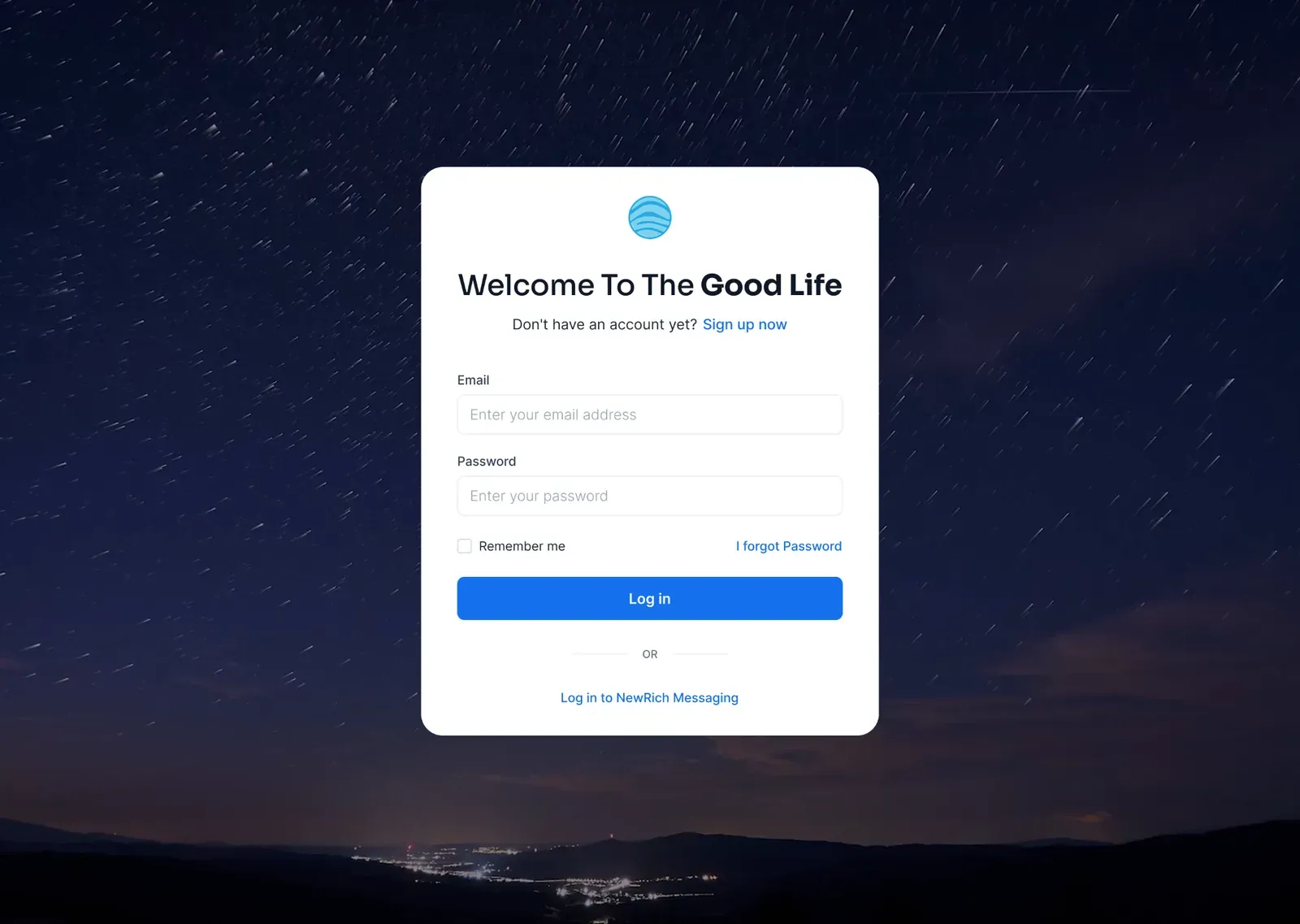
Step 1 – Select "Forgot password?"
On the login screen, click the Forgot password? link located beneath the password field to begin the password reset process.
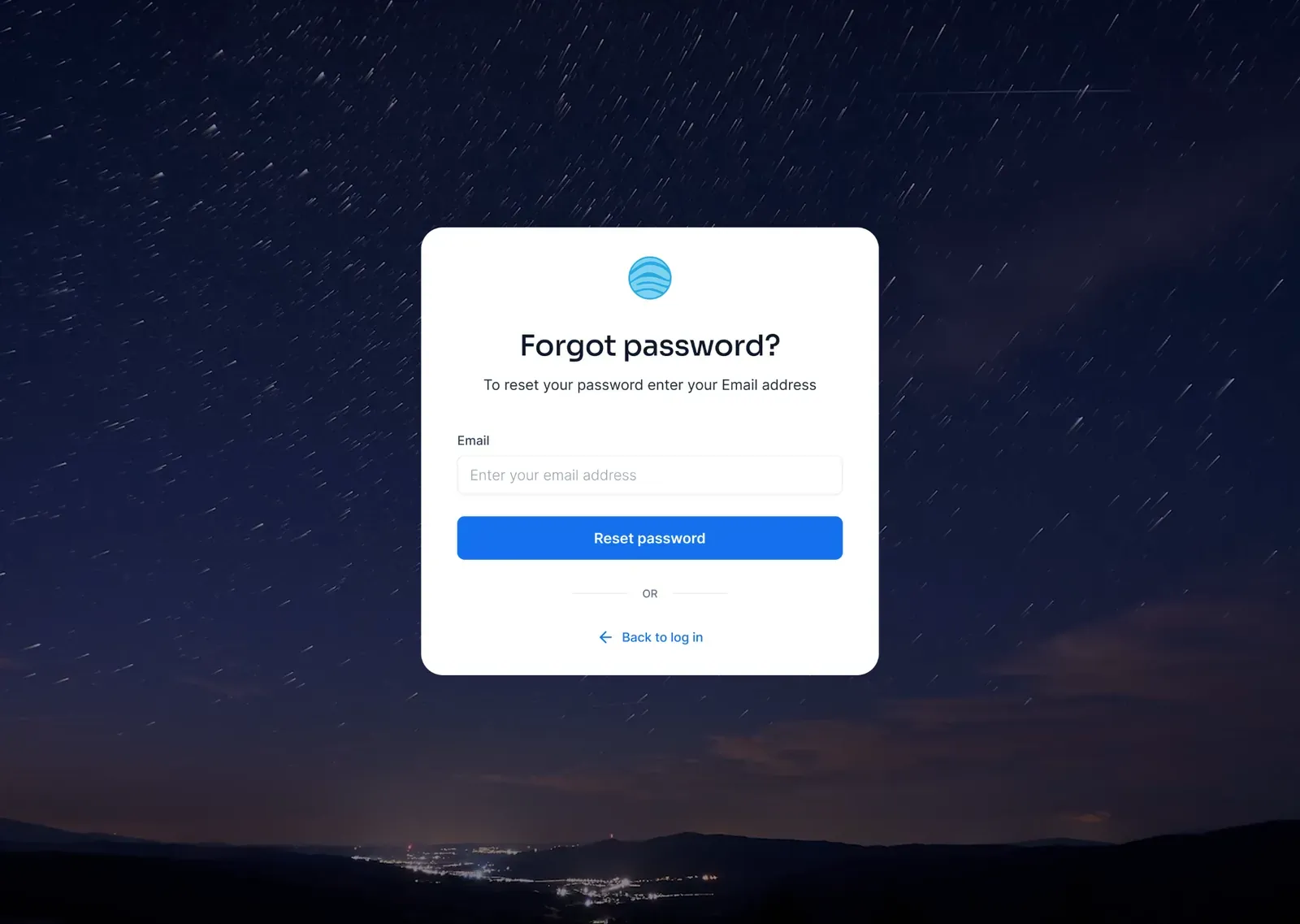
Step 2 – Enter your email address
Enter the email address associated with your account and click Reset password.
If the email address is valid, you'll see a confirmation message letting you know that a password reset link has been sent.
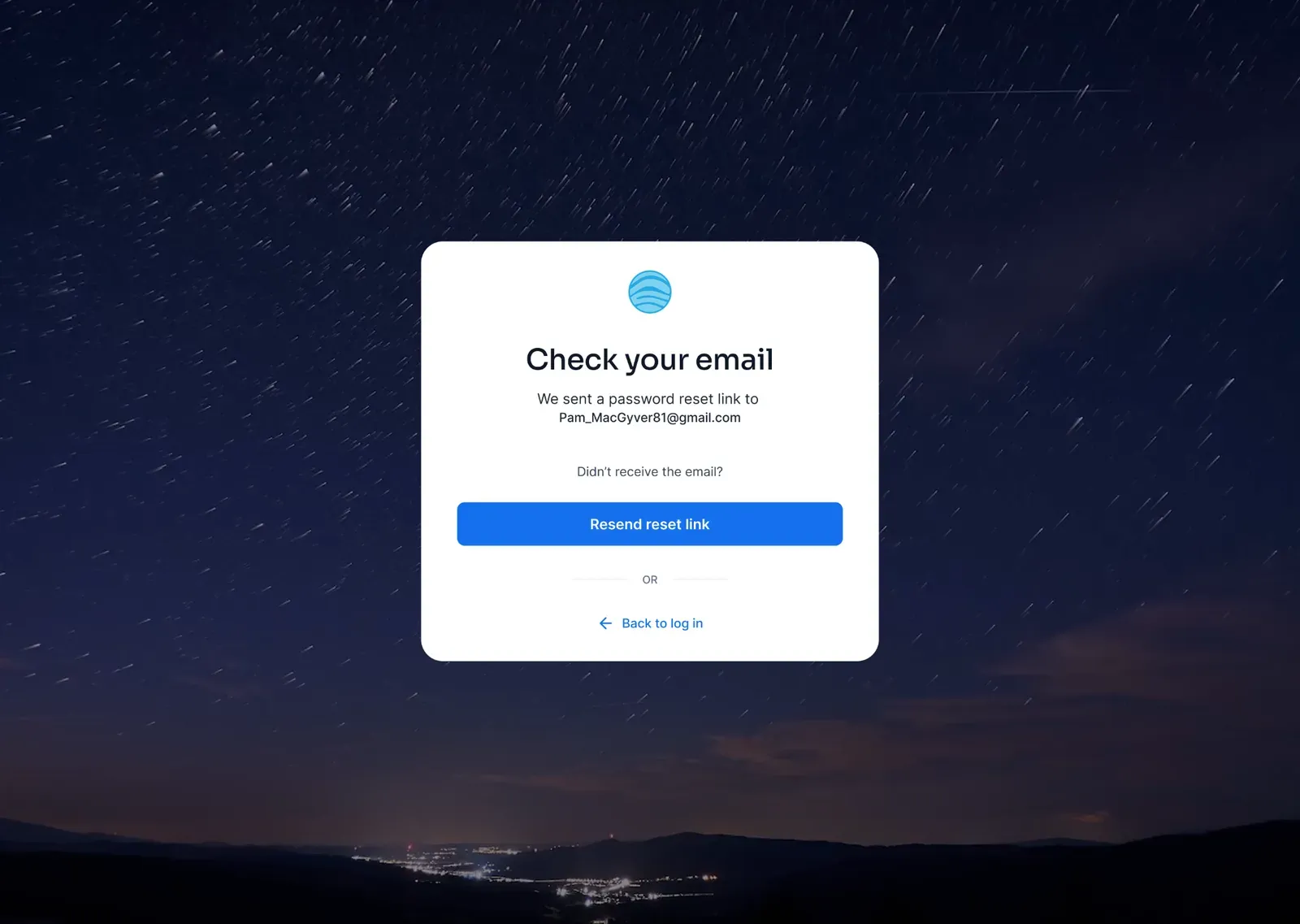
Step 3 – Check your email
Open the email we sent you and click the secure password reset link.
If you don't receive the email after a few minutes, you can request a new reset link from the Check your email screen.
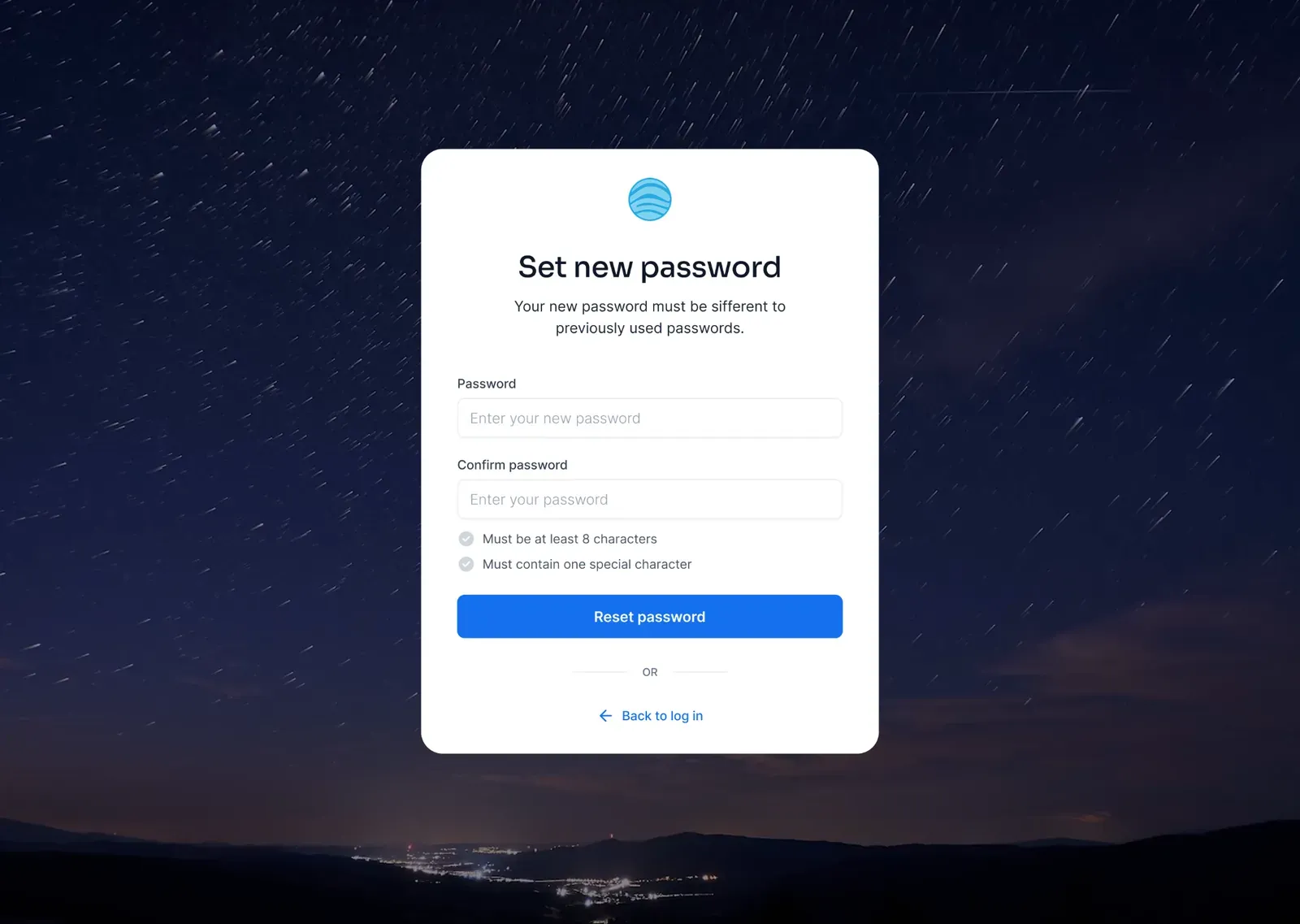
Step 4 – Create a new password
After opening the reset link, you'll be asked to create a new password.
Enter your new password, confirm it, and make sure it meets all password requirements. Password rules are displayed on the page and validated as you type.
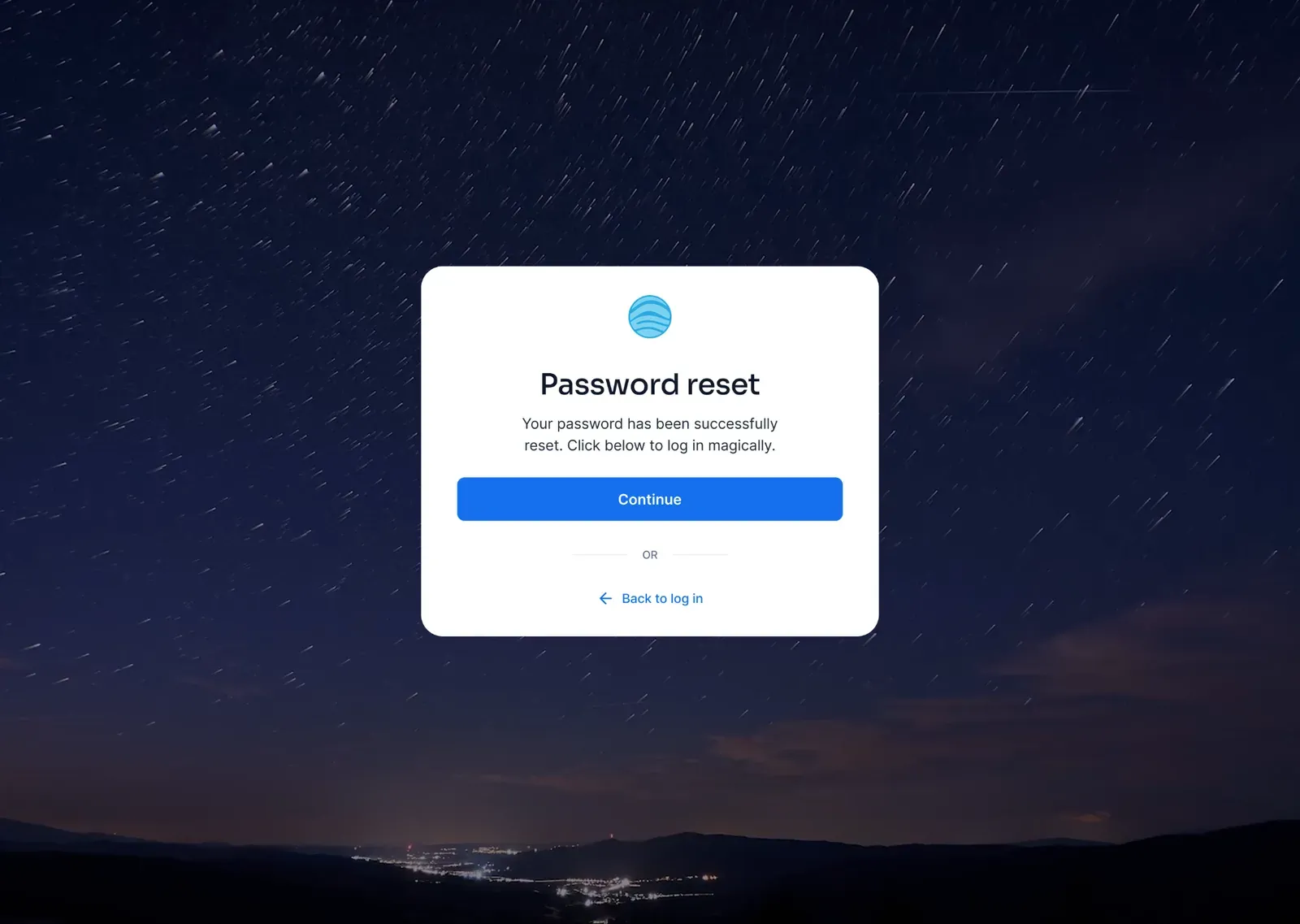
Step 5 – Password reset complete
Once your new password has been successfully saved, you'll see a confirmation screen.
You can now continue to the login page and sign in using your new password.
2. Changing Your Password (while signed in)
If you're already signed in, you can change your password at any time from your account settings.
Where to find it
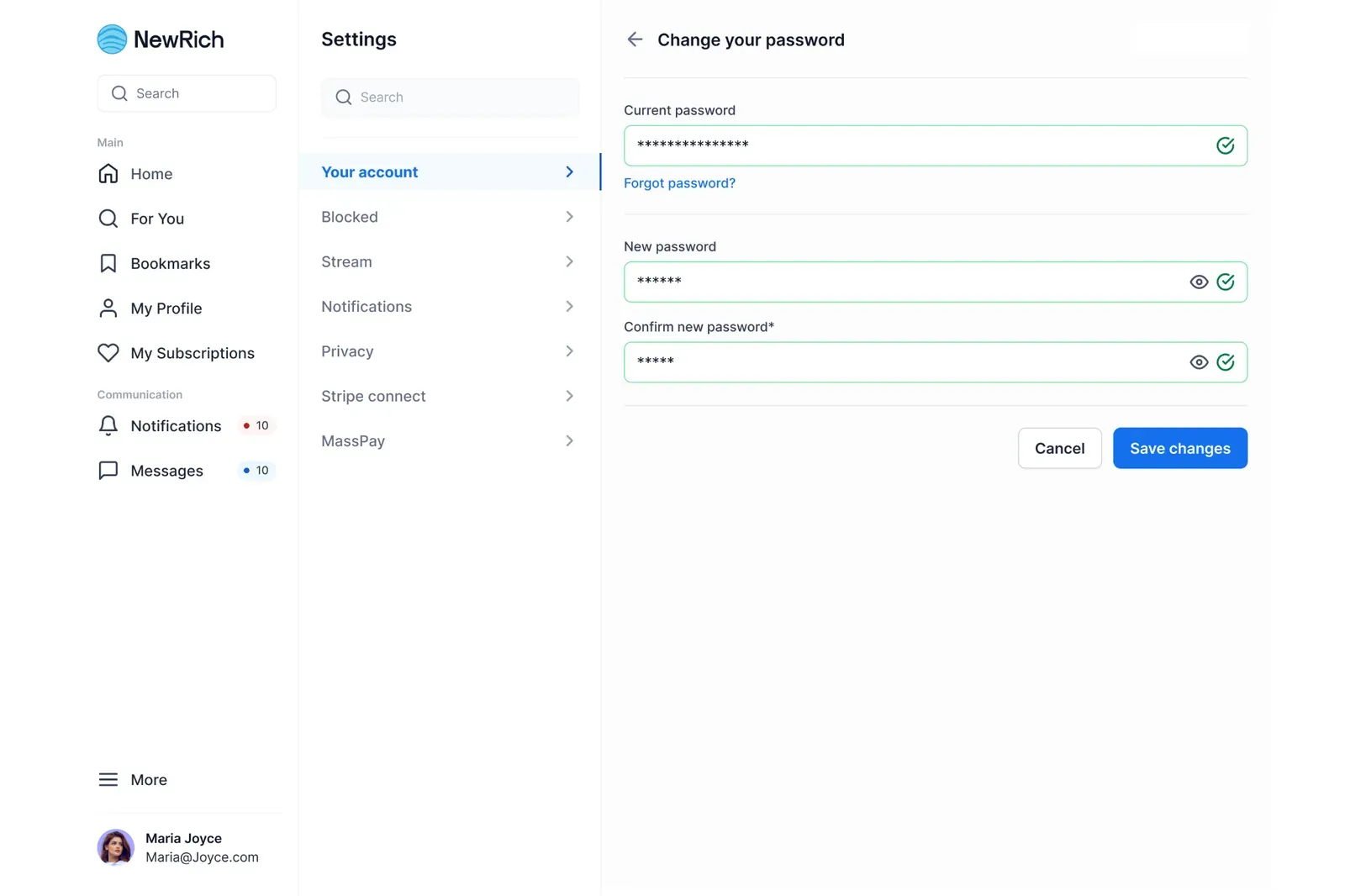
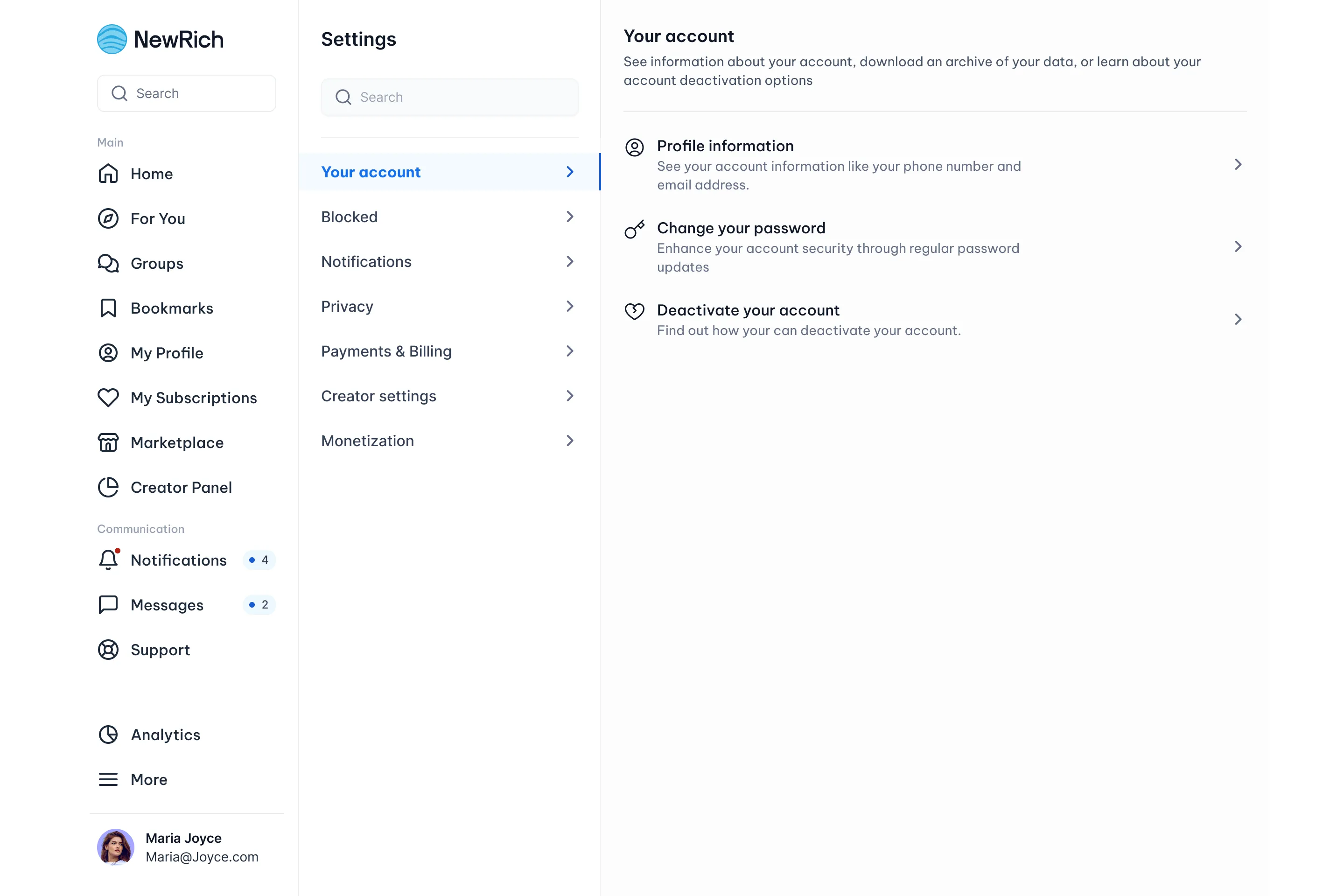
Go to: Settings → Your account → Change your password
Step 1 – Open Change your password
Navigate to the Your account section in Settings and select Change your password.
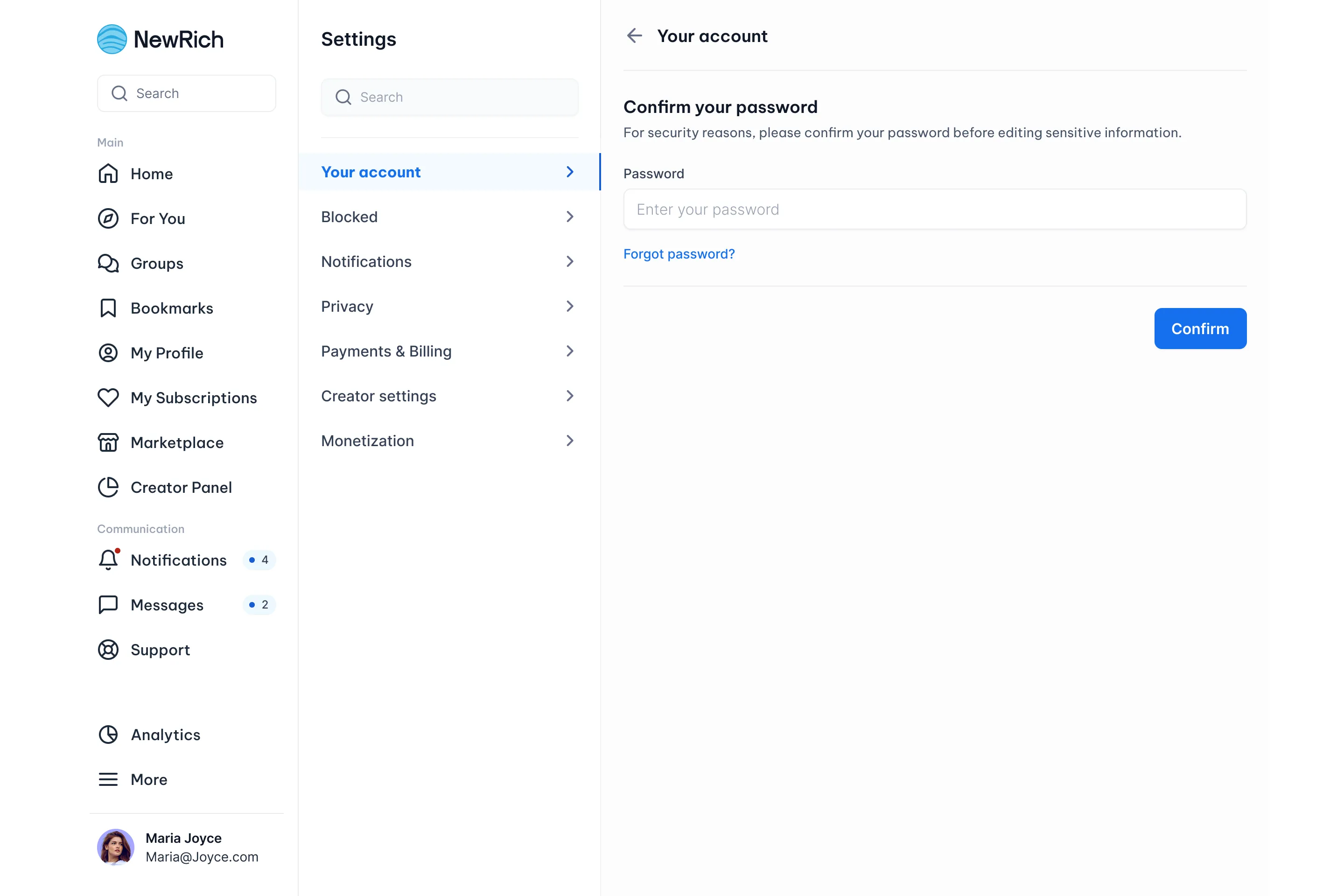
Step 2 – Verify your current password
Enter your current password to confirm your identity before making any changes.
If the password you enter is incorrect, you'll see an error message and will need to try again.
If you've forgotten your current password, you can also select Forgot password? to start the password reset process.
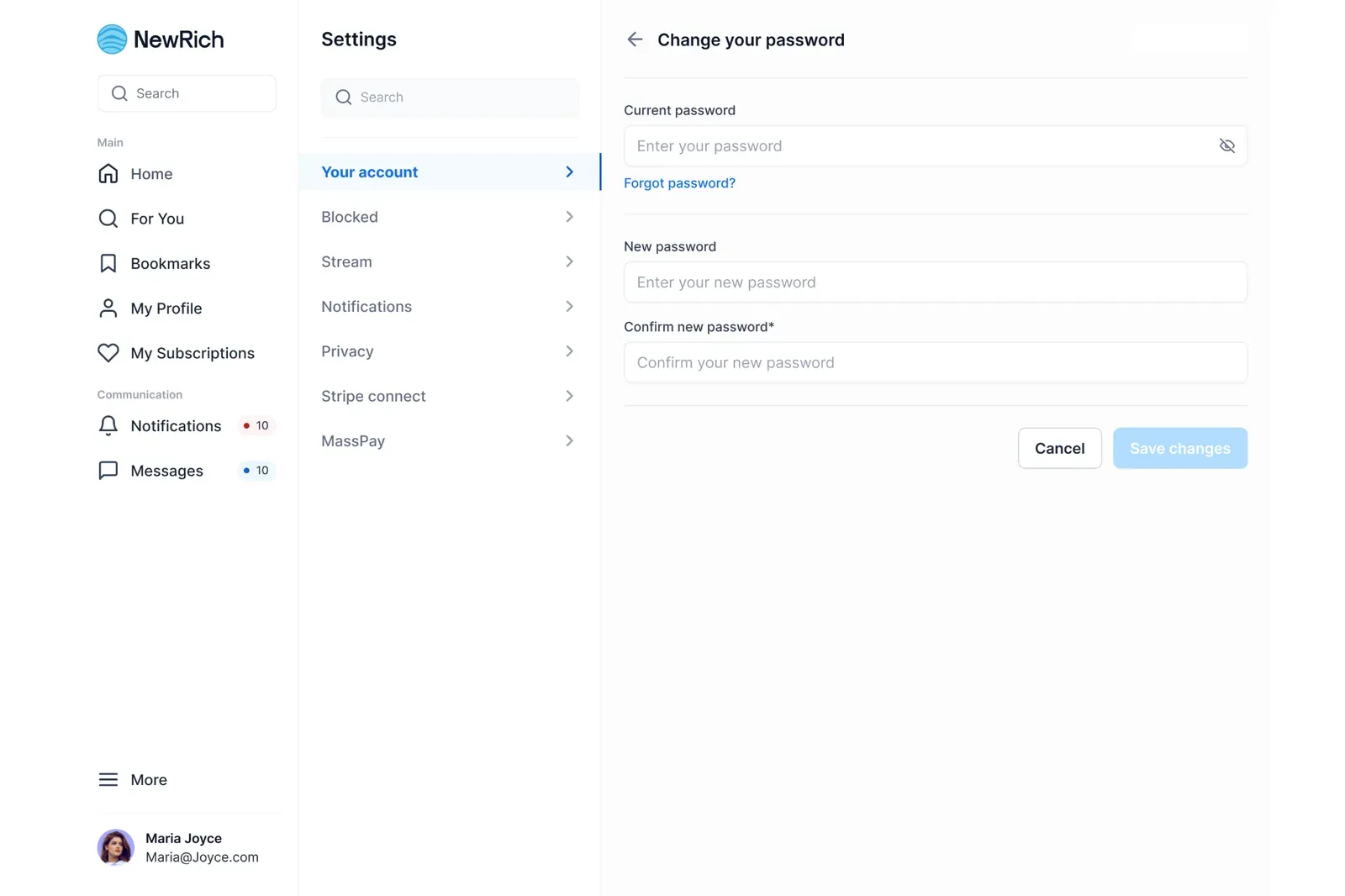
Step 3 – Enter your new password
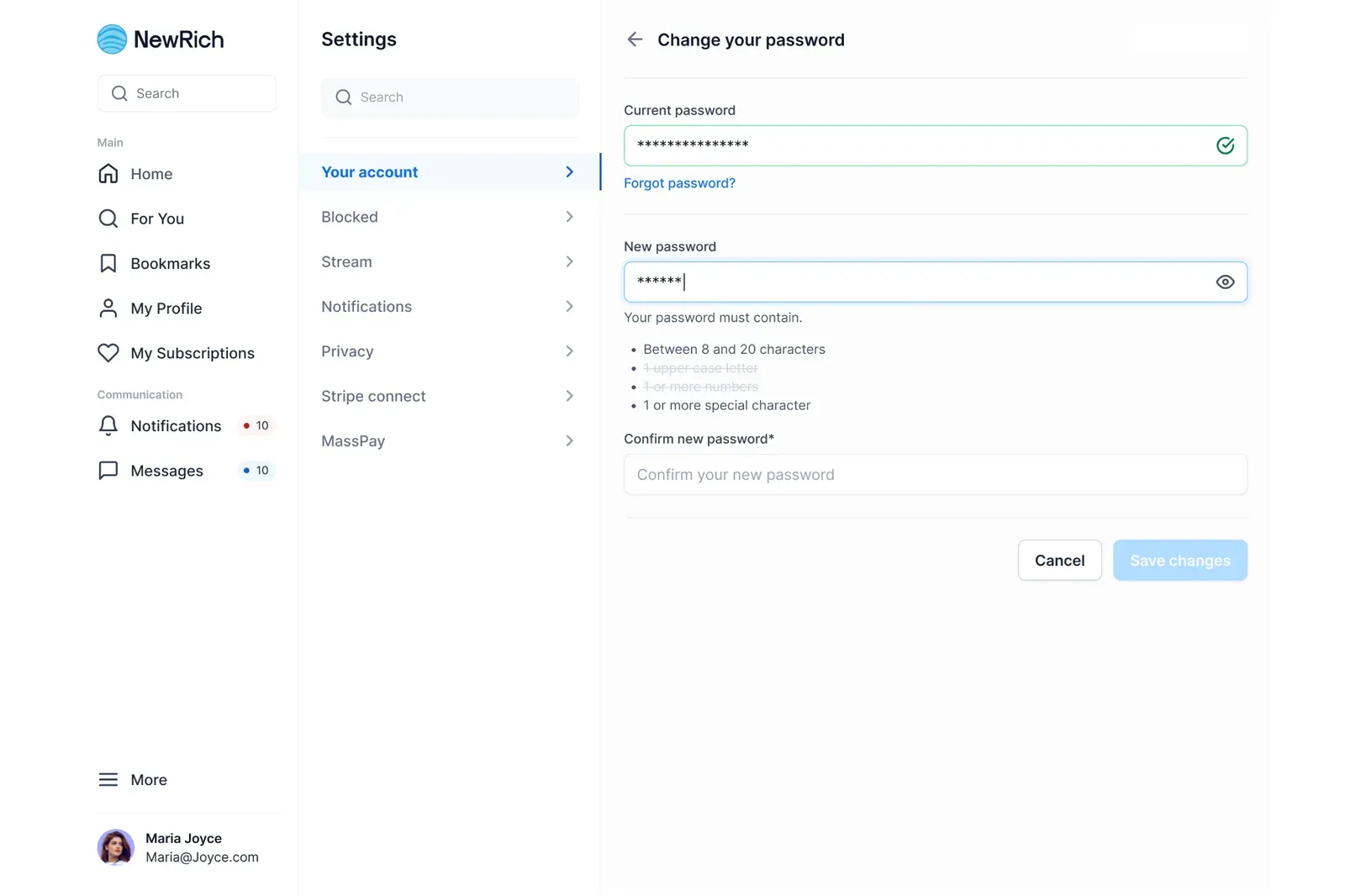
Enter your new password and confirm it by typing it again in the confirmation field.
As you type, password requirements will be displayed and updated in real time, helping you create a secure password that meets all requirements.
Step 4 – Save your changes
Once your new password matches the confirmation password and all password requirements have been met, the Save changes button will become available.
Click Save changes to update your password.
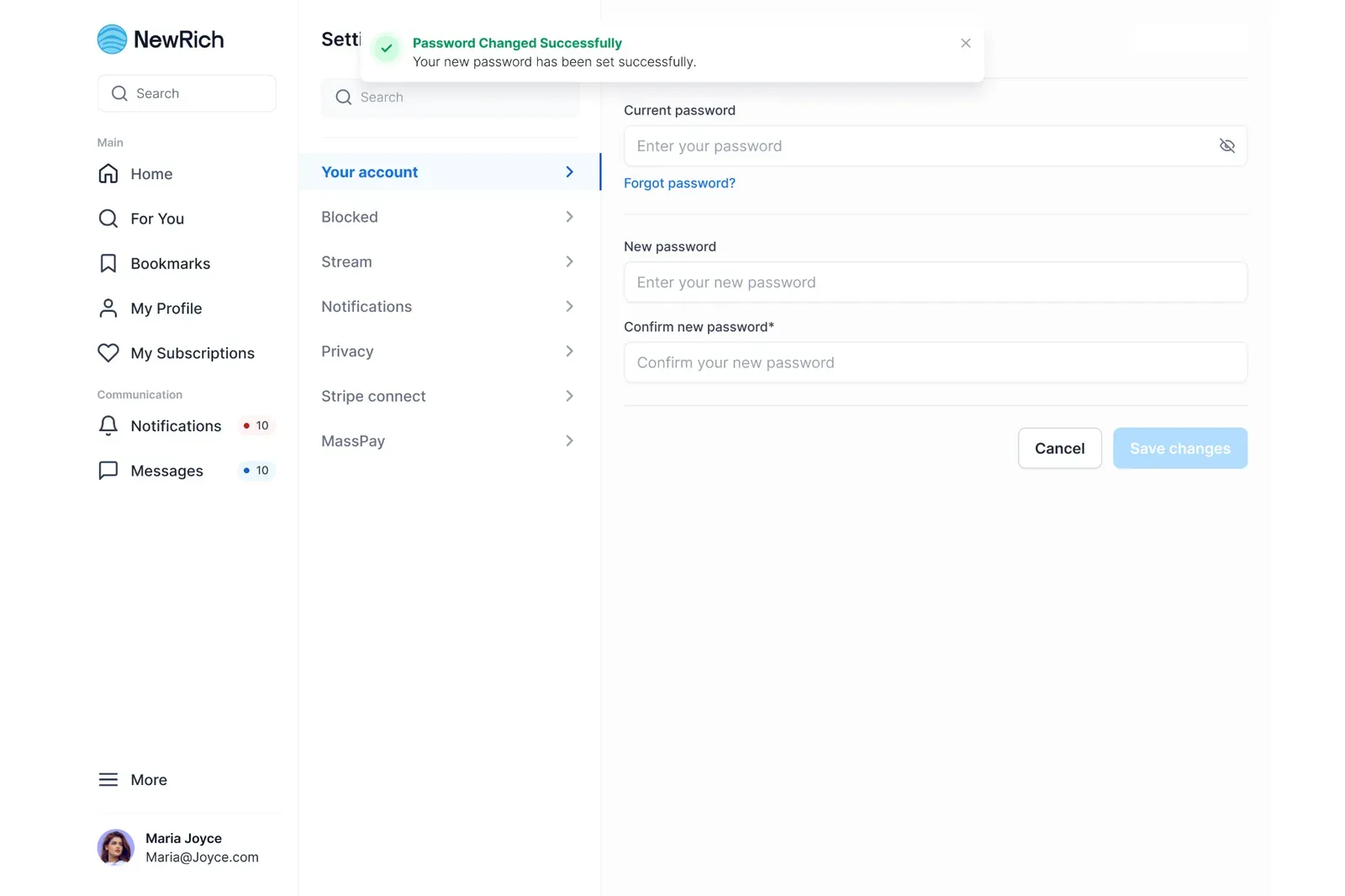
Step 5 – Confirmation
After your password has been successfully updated, a confirmation message will appear to let you know that your changes have been saved.
Your new password will take effect immediately and can be used the next time you sign in.