
Monetization
Monetization
The Monetization section helps you manage how your products are priced, promoted, and sold.
From here, you can set product prices, create discount codes, build bundles, and configure upsell offers to increase sales and maximize revenue.
Pricing
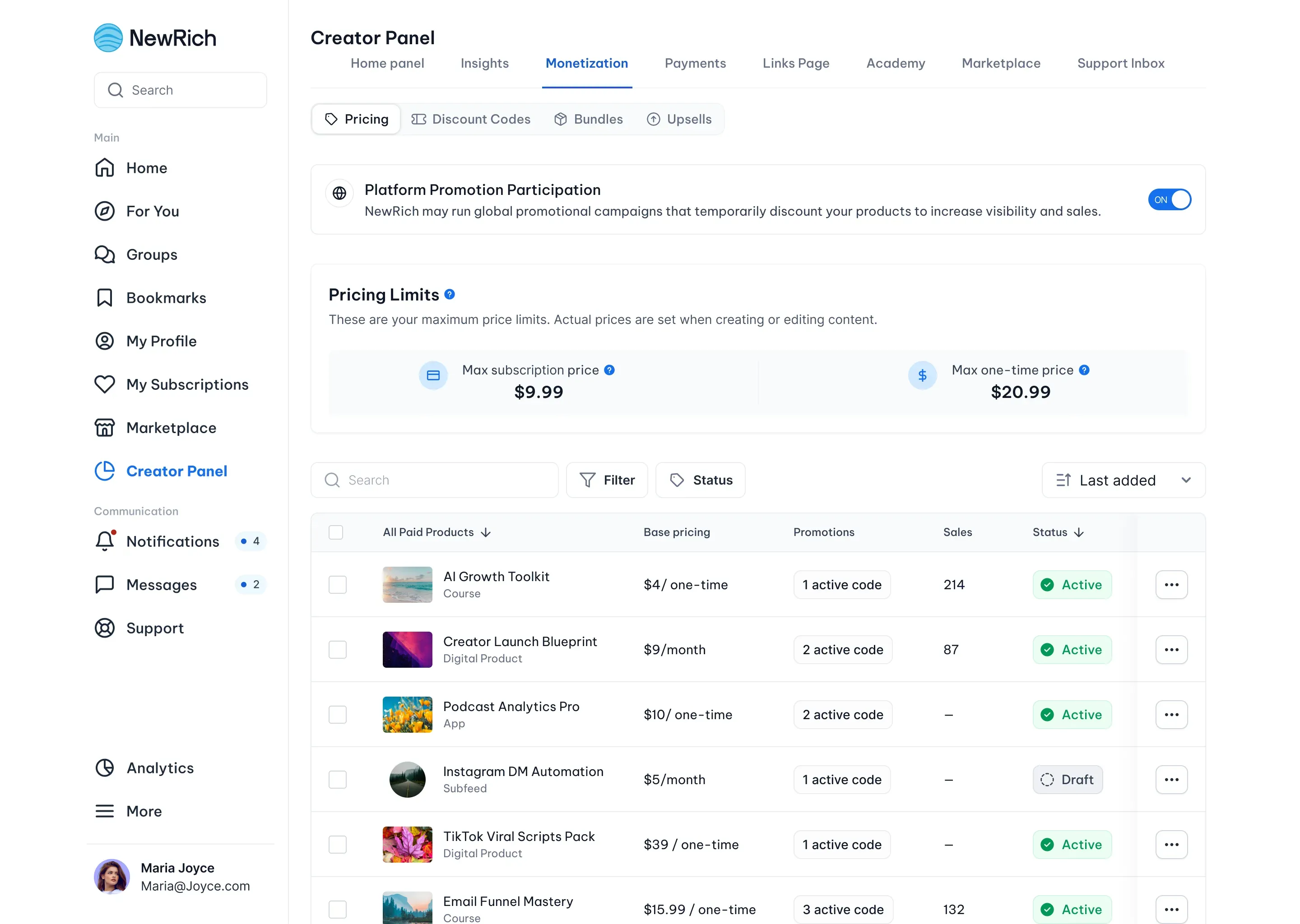
Use the Pricing section to manage the pricing of all your paid products in one place.
From here, you can:
- Set or update prices for your paid products.
- Choose pricing for one-time purchases and subscriptions.
- Join platform-wide promotional campaigns.
- View active promotions for each product.
- Monitor product status and sales performance.
Platform Promotion Participation
You can choose whether your eligible products participate in NewRich promotional campaigns.
These campaigns may temporarily discount your products to increase visibility and help you reach more customers.
Products Table
The product list gives you a quick overview of all your paid products, including:
- Base price
- Active promotions
- Sales
- Publication status
You can also edit pricing or manage promotions directly from the product actions menu.
Discount Codes
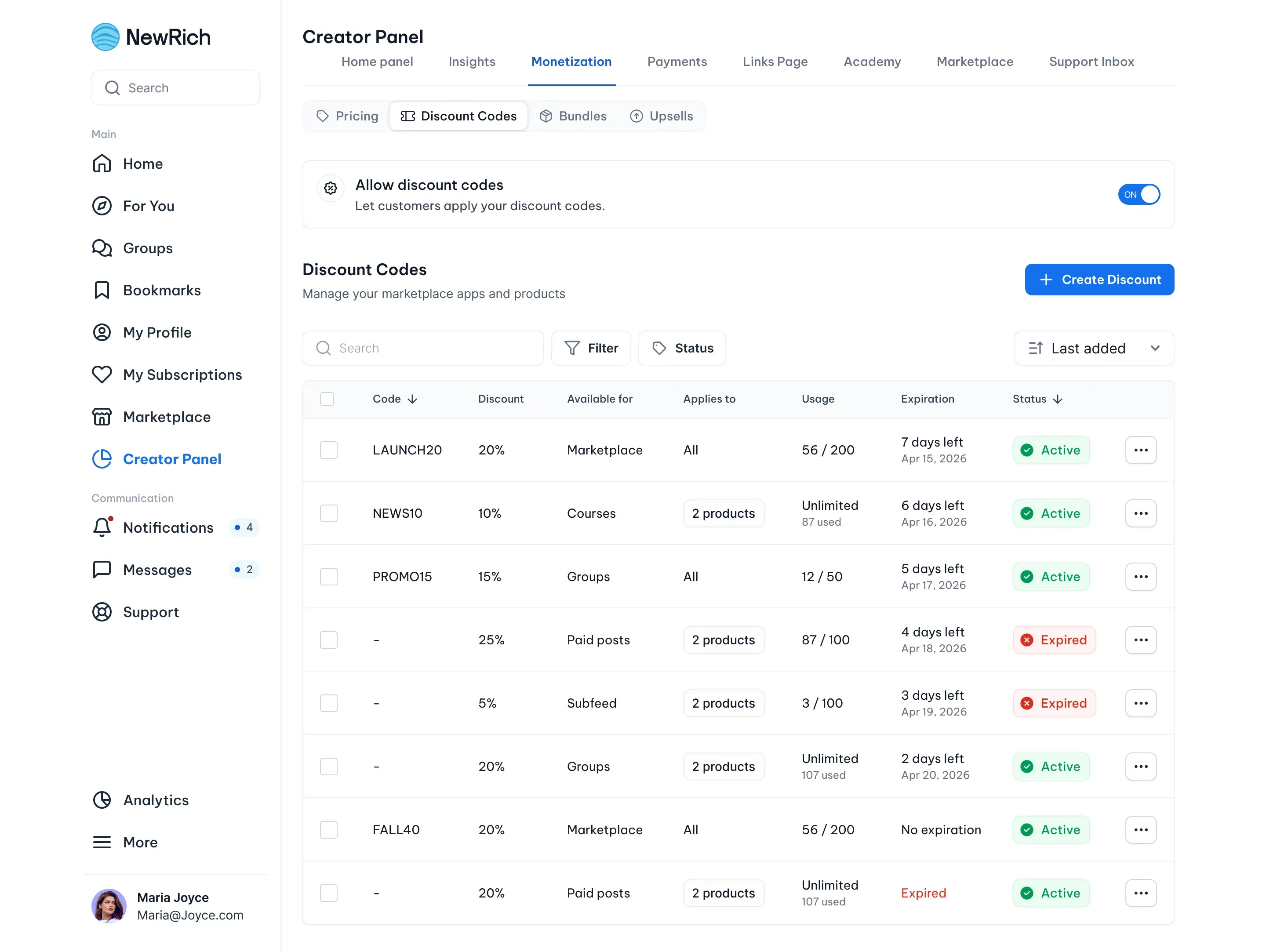
Discount Codes let you create promotional offers for your products and encourage more purchases.
With discount codes, you can:
- Create fixed-amount or percentage discounts.
- Apply discounts to selected products or categories.
- Set usage limits and expiration dates.
- Limit how many times a code can be redeemed.
- Monitor the status and redemption history of each discount code.
Create Discount Code
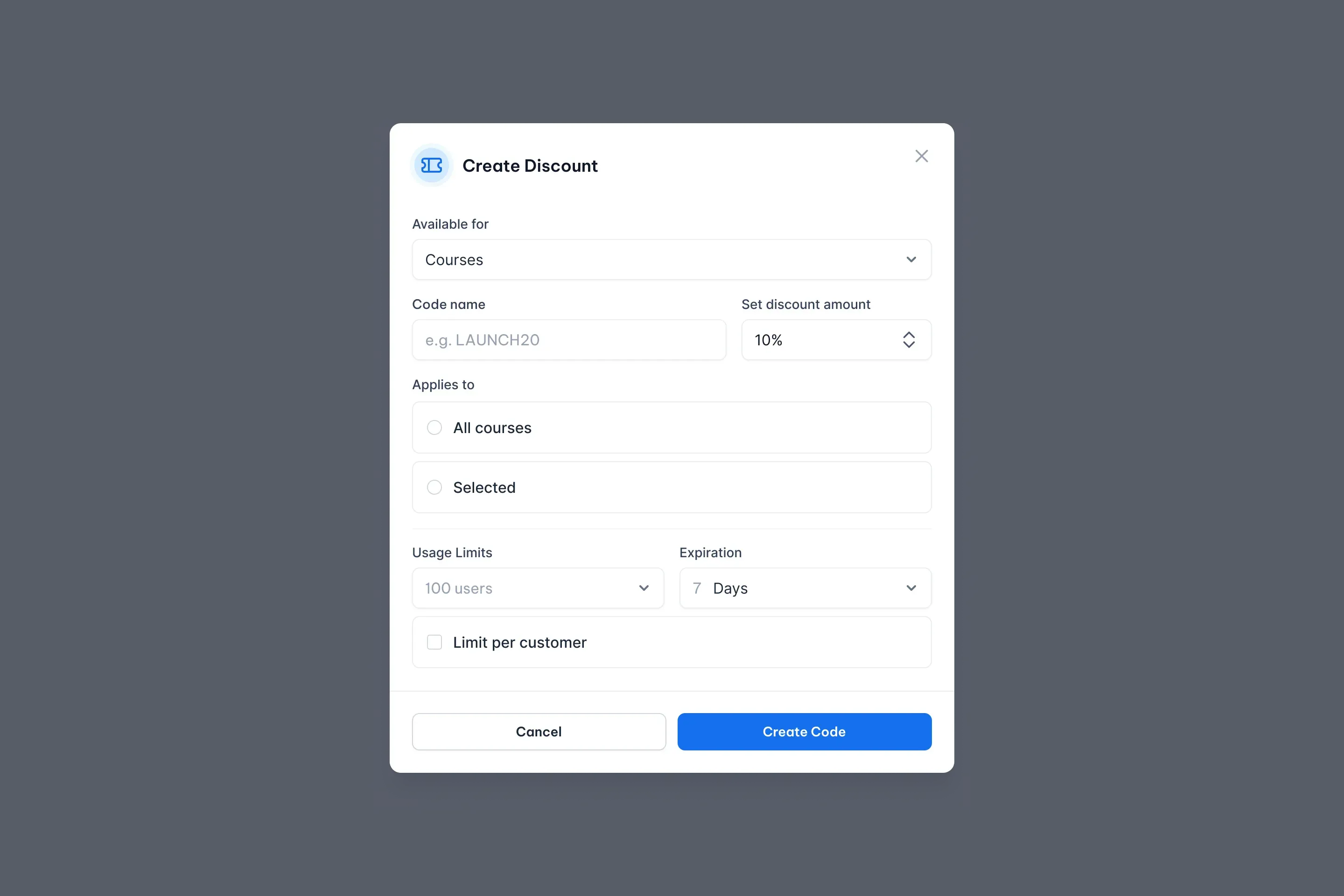
When creating a discount code, configure the following settings:
- Products or Categories – Select which products or categories the discount applies to.
- Code Name – Enter the discount code that customers will use during checkout.
- Discount Type – Choose whether the discount is a fixed amount or a percentage.
- Discount Value – Set the value of the discount.
- Usage Limits – Limit how many times the code can be redeemed.
- Expiration Date – Set when the discount code expires.
- Redemption Limit per Customer (Optional) – Limit how many times each customer can use the code.
Bundles
Bundles let you combine multiple products into a single offer, making it easier for customers to purchase related content while receiving a discounted price.
Bundles are a great way to increase the value of each purchase and promote multiple products together.
Bundle List
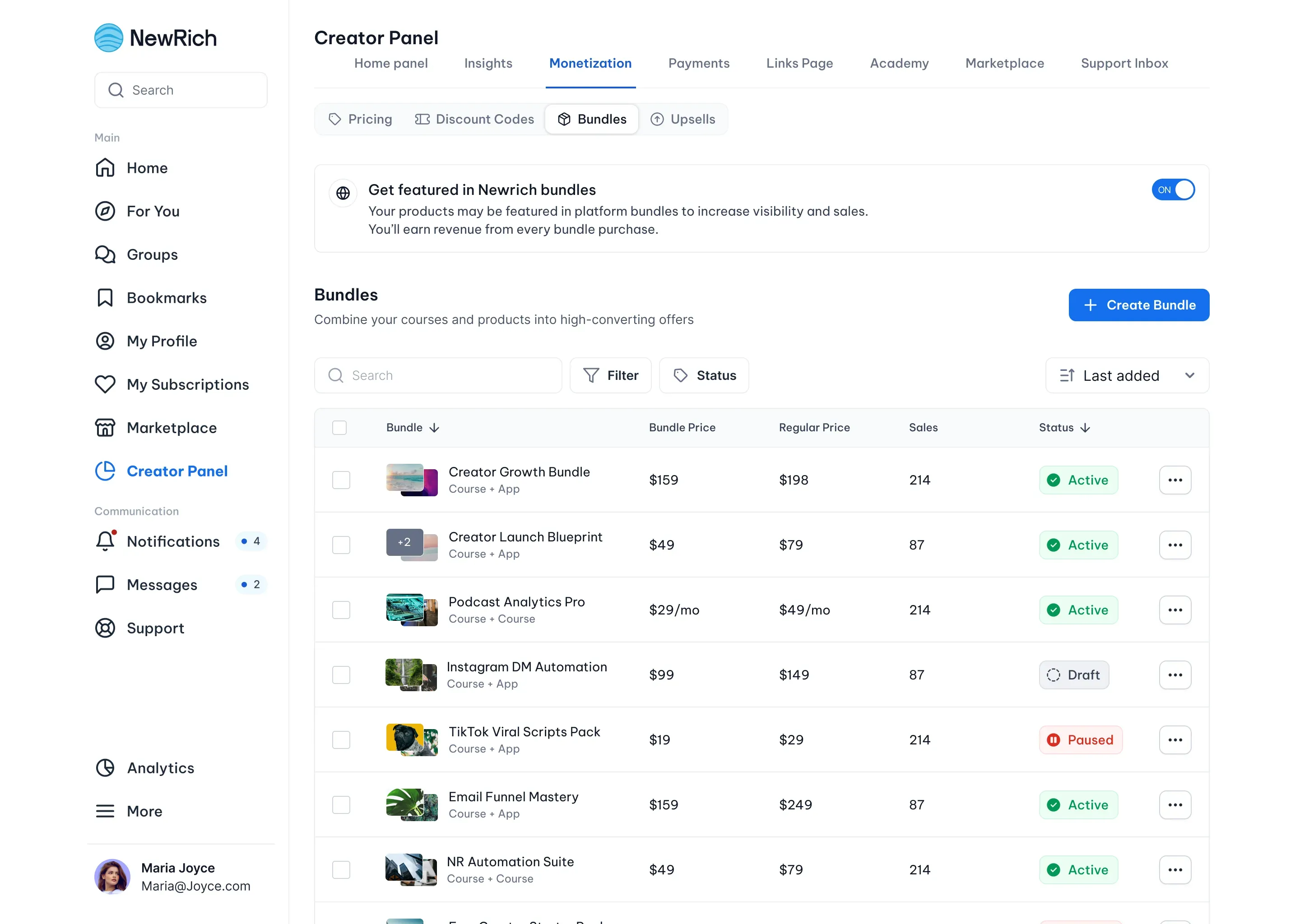
The Bundle List provides an overview of all bundles you've created.
Each bundle displays:
- Bundle name
- Included products
- Bundle price
- Original value
- Total sales
- Current status
From the Bundle List, you can quickly review your existing bundles and manage them as needed.
Create Bundle
Creating a bundle is a guided five-step process.
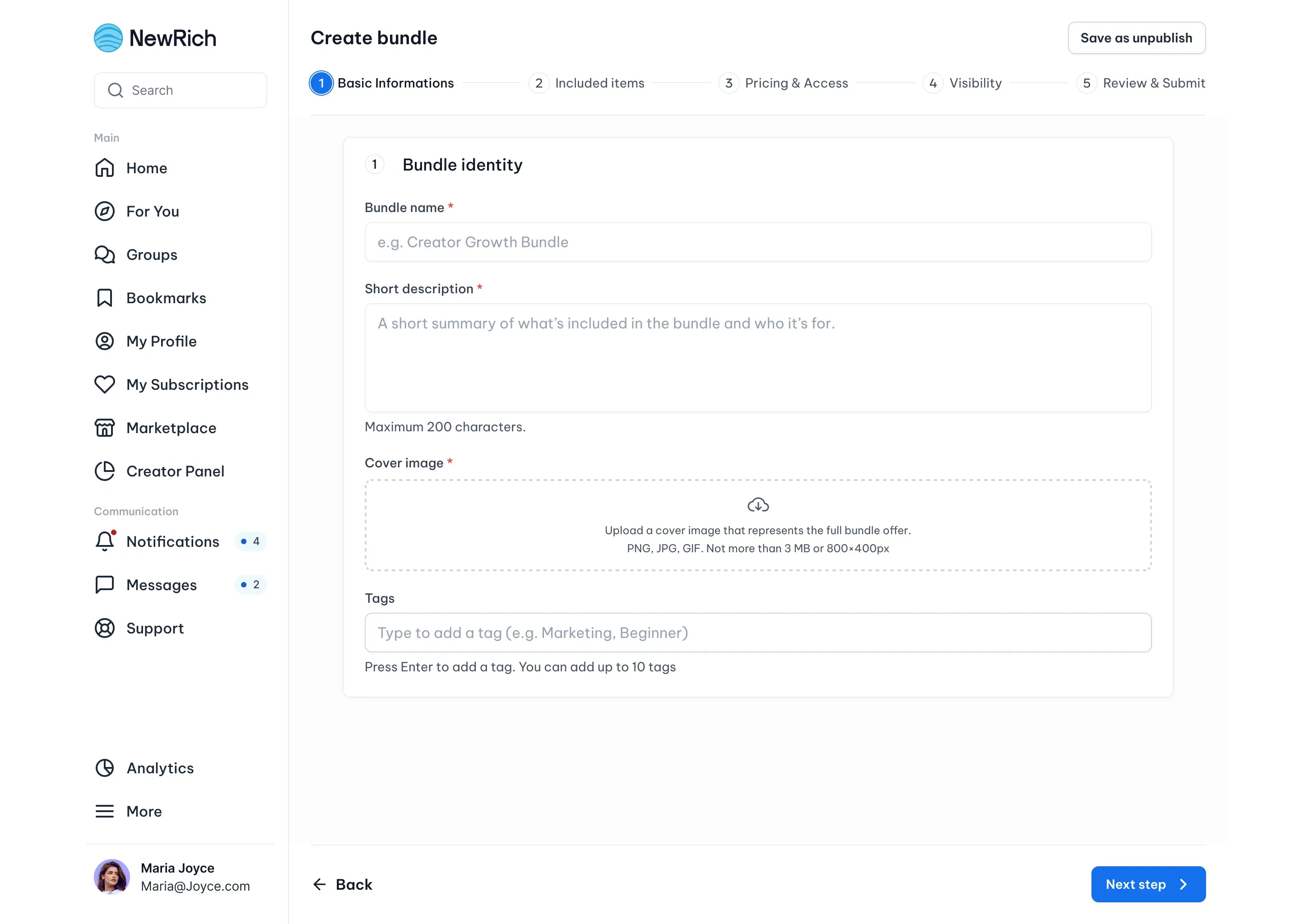
Step 1 — Bundle Basics
The first step is where you'll provide the basic information about your bundle.
Complete the following information:
- Bundle Name – Enter a name for your bundle.
- Short Description – Add a brief summary of what's included in the bundle.
- Cover Image – Upload an image that represents your bundle.
- Tags – Add tags to help organize and find your bundle.
When you've finished, click Next step.
Step 2 — Included Items
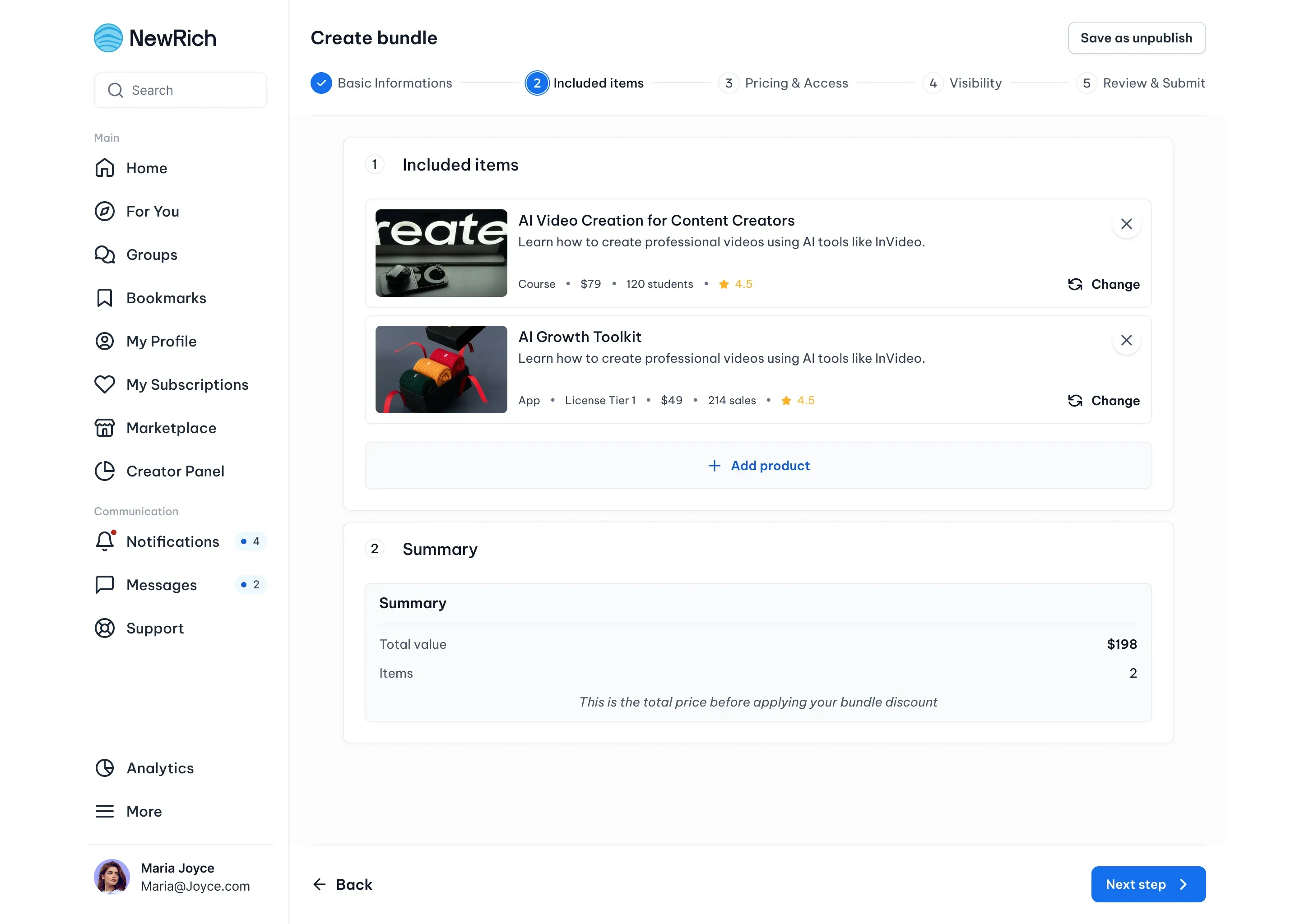
Choose the products you want to include in your bundle.
As you add products, you'll also see:
- Number of Included Products
- Total Value Before Discount
Review your selected products before continuing.
When you've finished, click Next step.
Step 3 — Pricing & Access
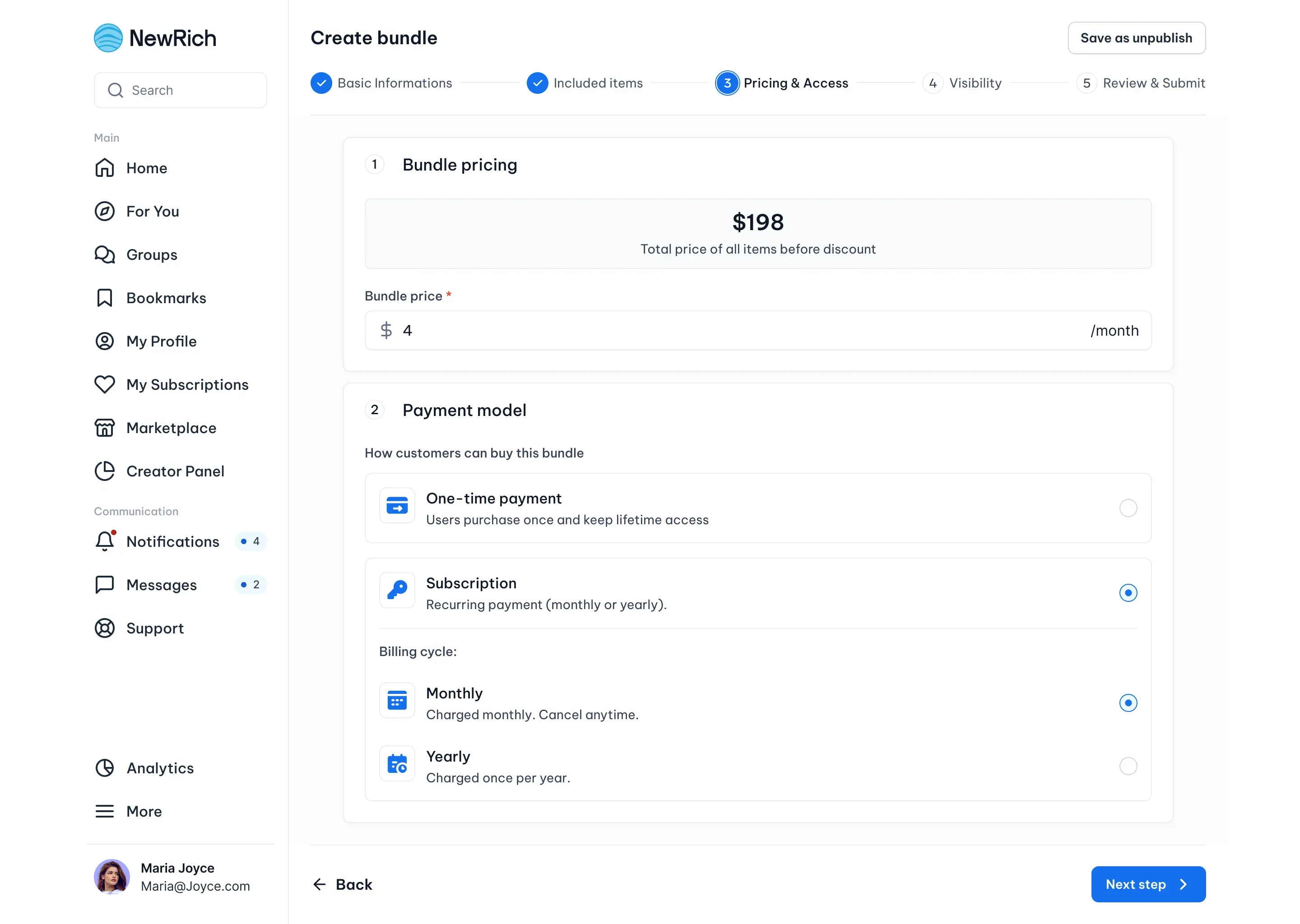
Choose how customers will purchase your bundle.
Select one of the available access options:
- One-Time Purchase - Customers pay once and receive lifetime access to the bundle.
- Subscription - Customers receive access to the bundle while their subscription remains active.
If you choose Subscription, you'll also select the billing frequency for the subscription.
When you've finished configuring the pricing settings, click Next step.
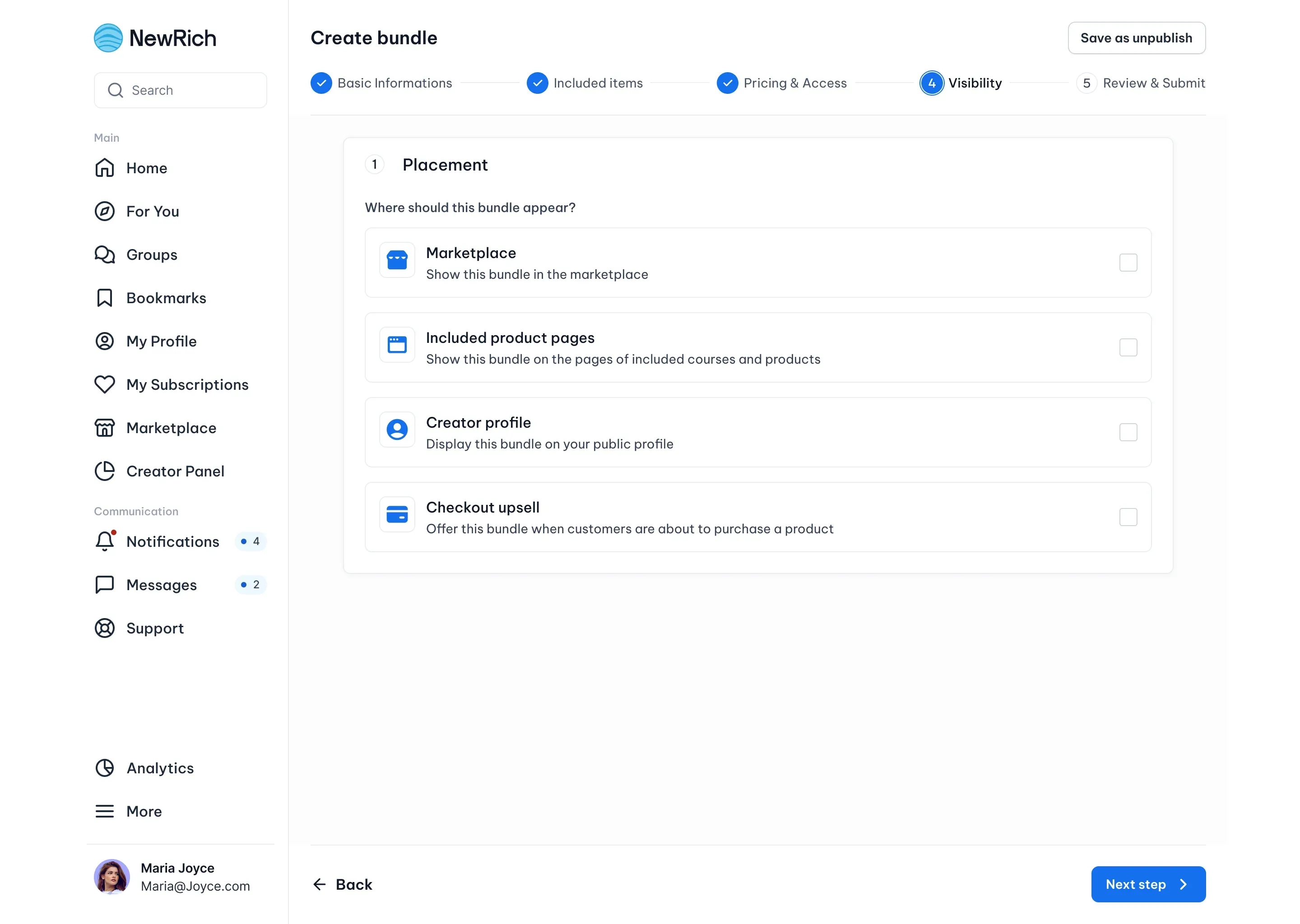
Step 4 — Visibility
Choose where your bundle will be available.
Available placements include:
- Marketplace
- Included Product Pages
- Creator Profile
- Checkout Upsells
These settings determine where customers can discover your bundle.
When you've finished, click Next step.
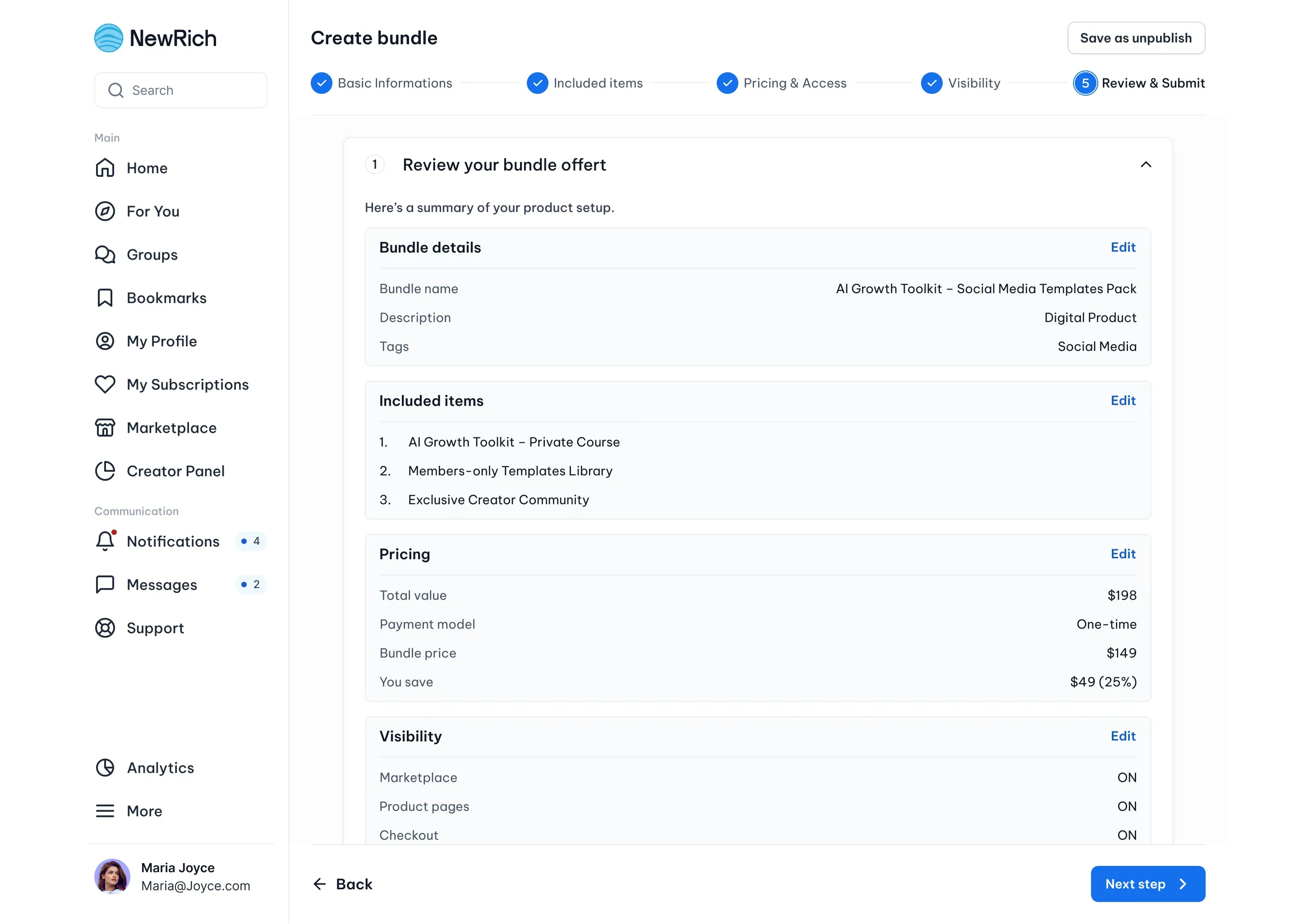
Step 5 — Review & Publish
Before publishing, review your bundle to make sure all information is correct.
The review includes:
- Bundle information
- Included products
- Pricing
- Visibility settings
If needed, you can return to any previous step to make changes.
When you're ready, click Publish to make your bundle available to customers.
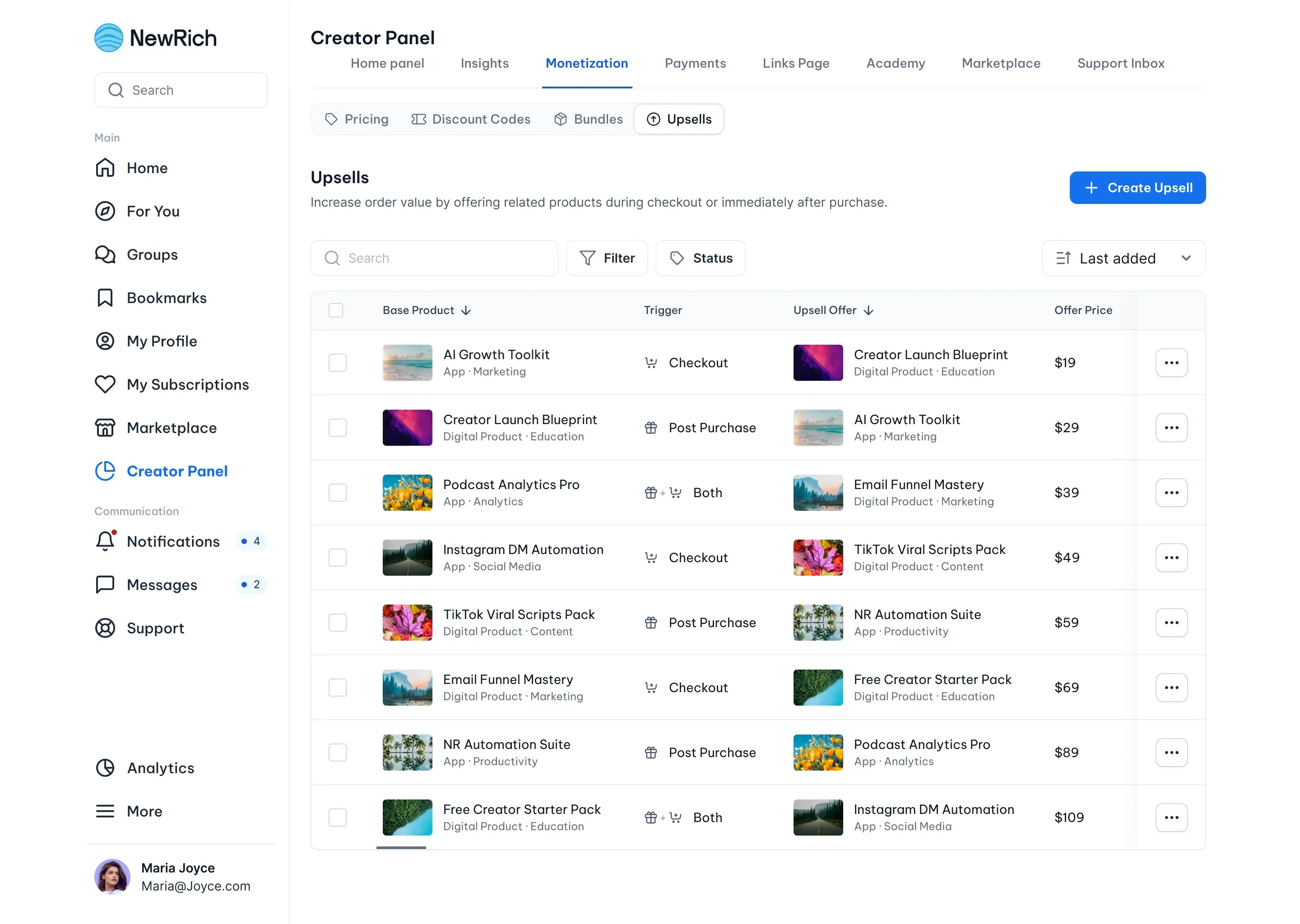
Upsells
Upsells let you recommend an additional product during or immediately after checkout, helping increase the value of each purchase.
Currently, upsells support Apps and Downloadable Files.
Upsell List
The Upsell List provides an overview of all upsell offers you've created.
Each upsell displays:
- Base product
- Recommended product
- Display trigger
- Upsell price
- Status
From the Upsell List, you can edit, activate, pause, or remove existing upsells.
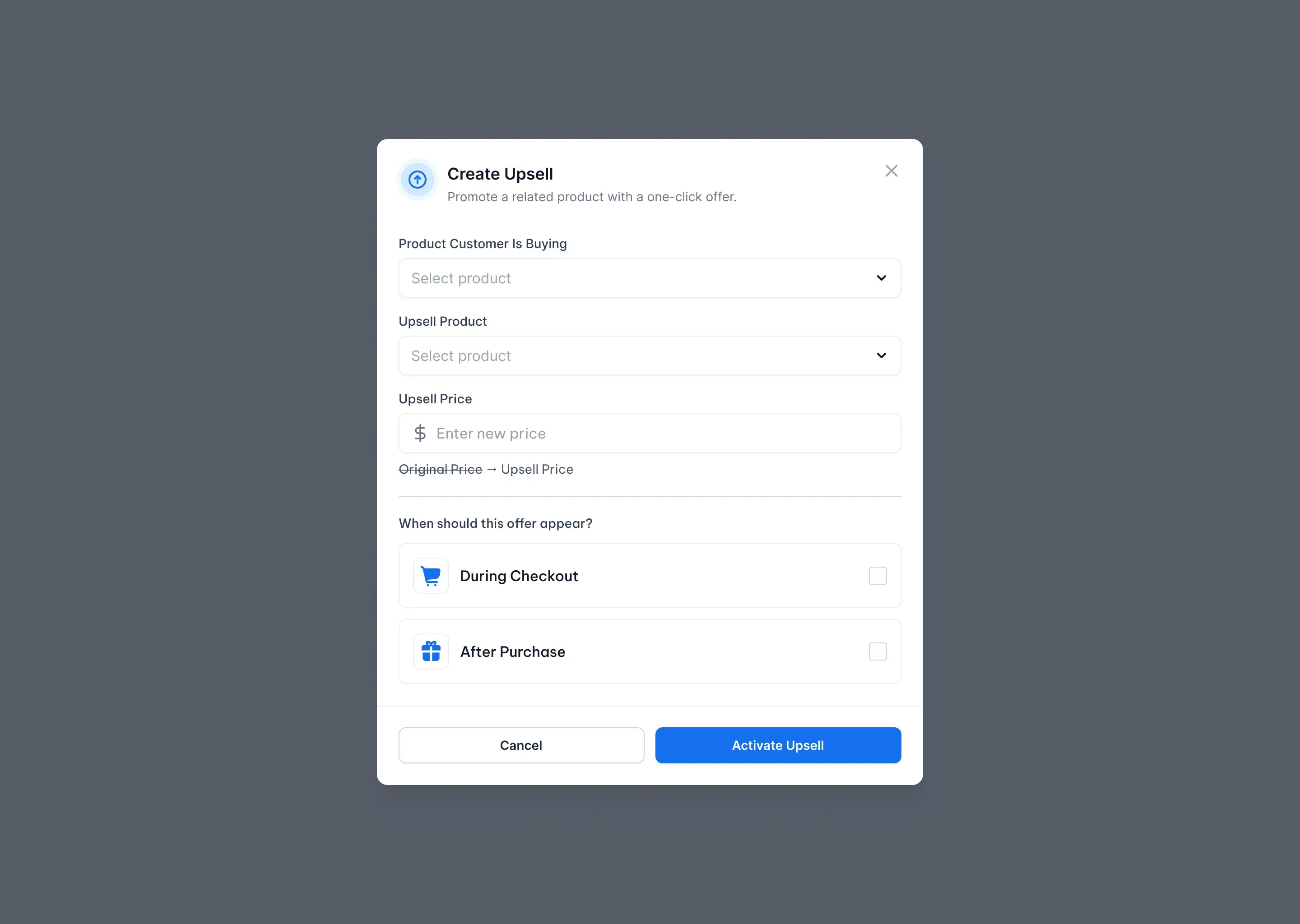
Create Upsell
To create an upsell, configure the following settings:
- Base Product – Select the product the customer is purchasing.
- Upsell Product – Choose the product you want to recommend.
- Upsell Price – Set a promotional price for the offer.
- Display Trigger – Choose when the offer should appear.
Available display options include:
- During Checkout - The upsell is displayed before the customer completes their purchase, allowing them to add the recommended product with a single click.
- After Purchase - The upsell appears immediately after a successful payment, giving customers another opportunity to purchase the recommended product.
- Both - Display the same upsell both during checkout and after the purchase is completed.
Once configured, click Activate Upsell to make the offer available.
Upsell Details
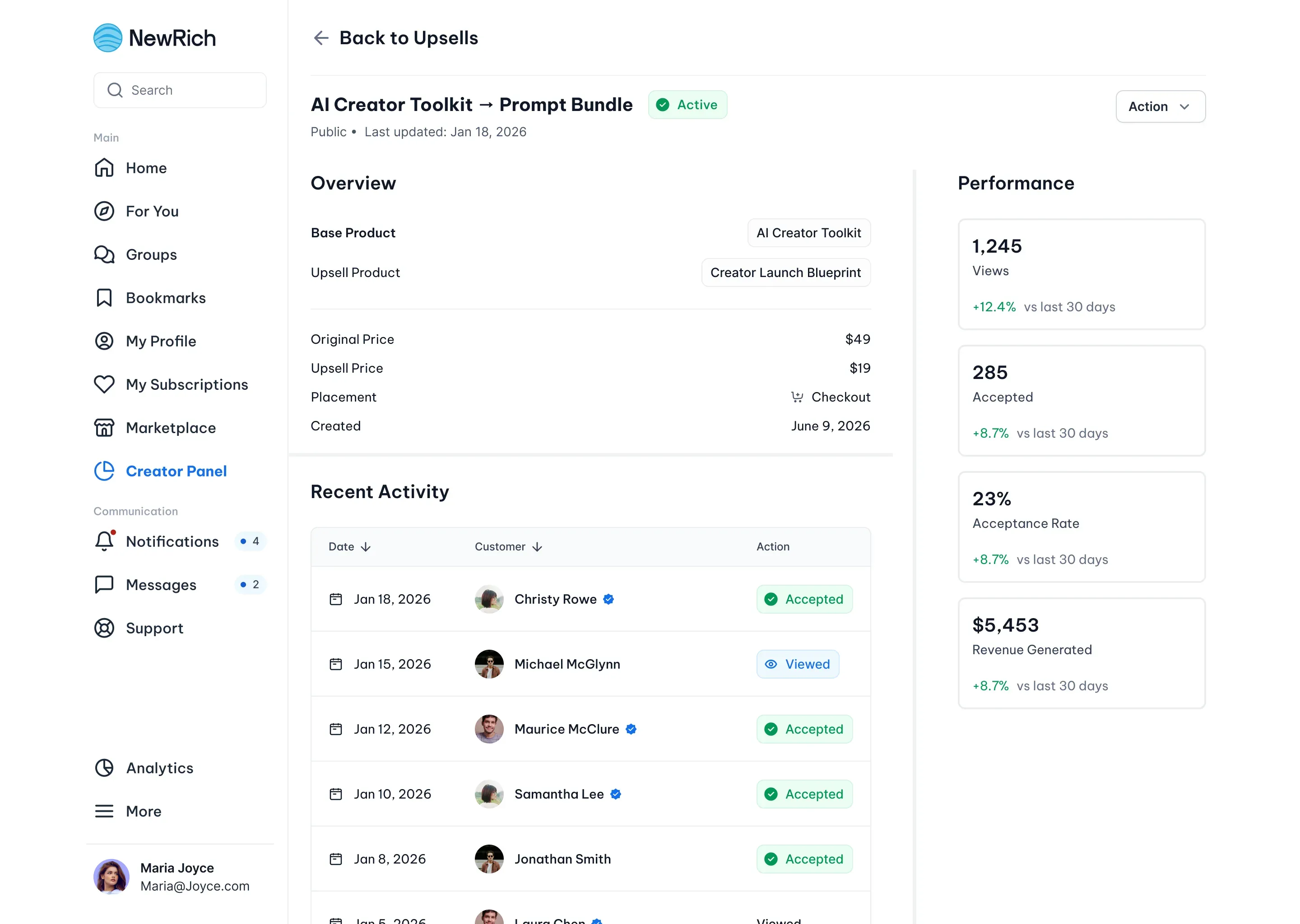
Open an upsell to review its configuration and performance.
Overview
The Overview section includes:
- Base product
- Upsell product
- Original price
- Upsell price
- Display placement
- Creation date
Performance
Monitor how your upsell is performing with metrics such as:
- Views
- Accepted offers
- Acceptance rate
- Revenue generated
Recent Activity
Review recent customer interactions, including:
- Customer
- Date
- Action (Viewed or Accepted)
These insights help you measure the effectiveness of your upsell offers and optimize future campaigns.