

Create a subfeed
Create a subfeed
A Subfeed is where your feed style content lives. Feeds can either be structured as pay per post feeds or subscription feeds. Users access your subfeed content simply by clicking on the subfeed highlight on the creators.
Creators can use subfeeds to separate content by topic, audience, membership level, or monetization strategy.
Where to Start
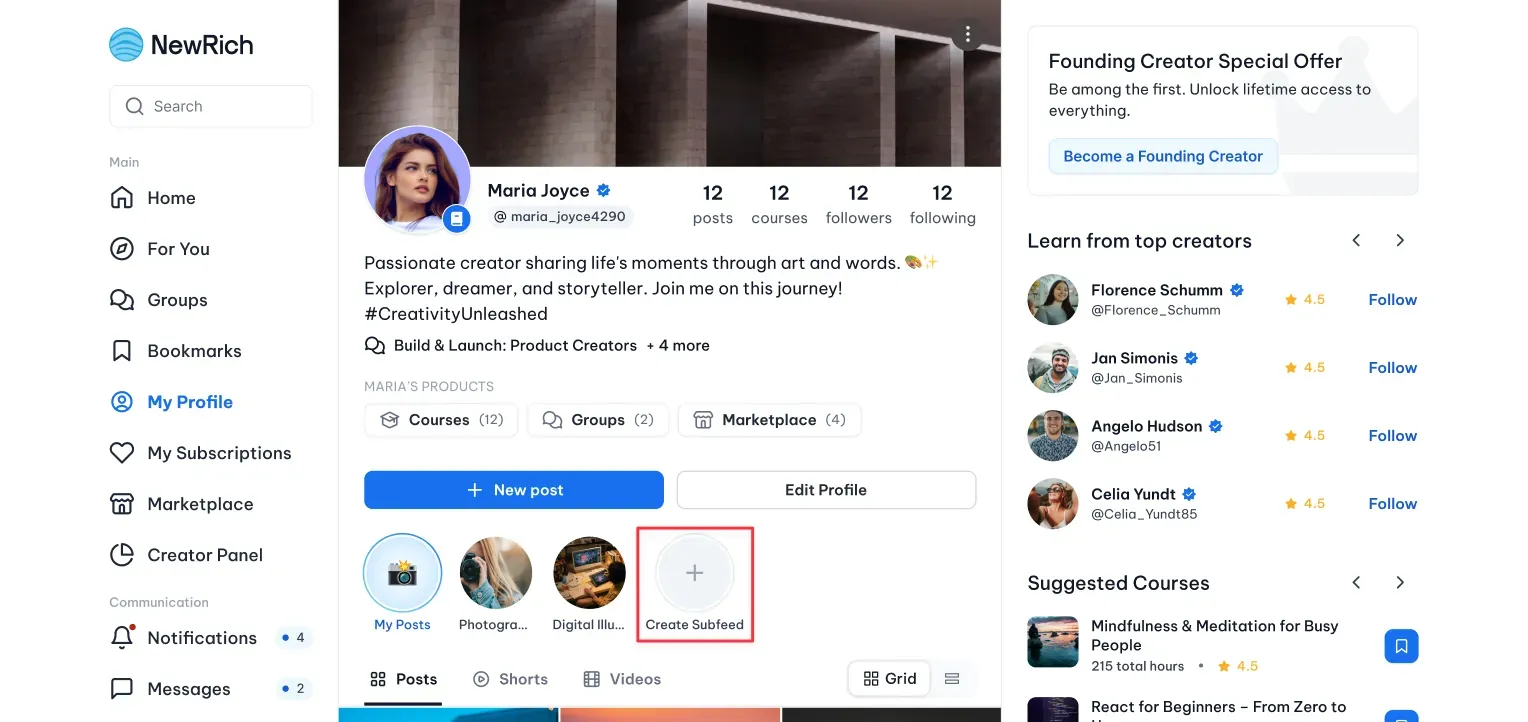
You can create a new subfeed from the Subfeeds section by selecting Create New
Step-by-Step
- Open the My Profile Tab.
- Click Create New Subfeed.
- The Create New Subfeed modal will appear.
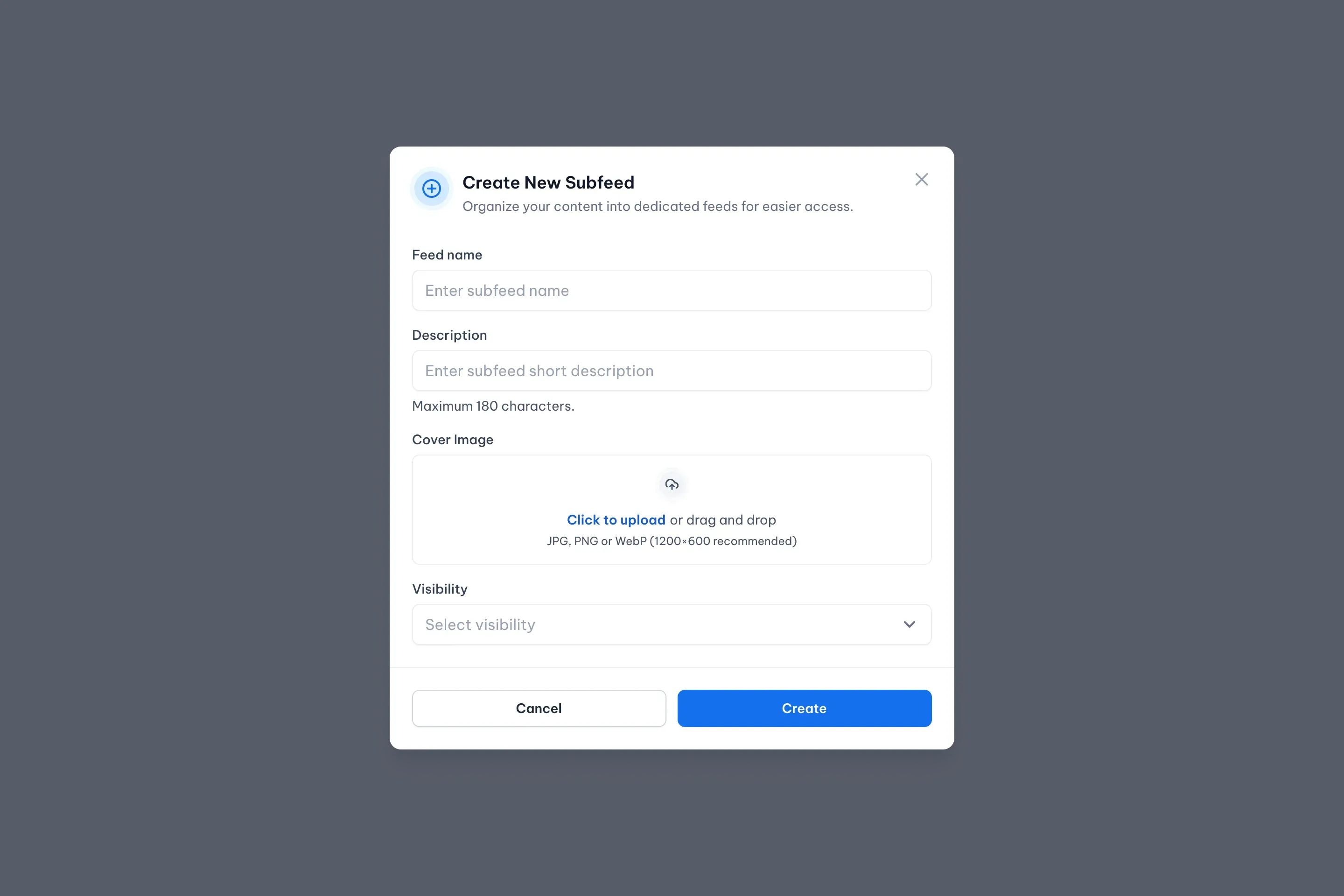
Step 1 - Enter Basic Information
In this step, you define the identity of your subfeed.
Fill in the following fields:
- Feed Name - Enter the name of your subfeed.
- Description - Provide a short description explaining what members can expect. Maximum: 180 characters.
- Cover Image - Upload an image that visually represents the subfeed.
- Visibility - Select how users will access the subfeed.
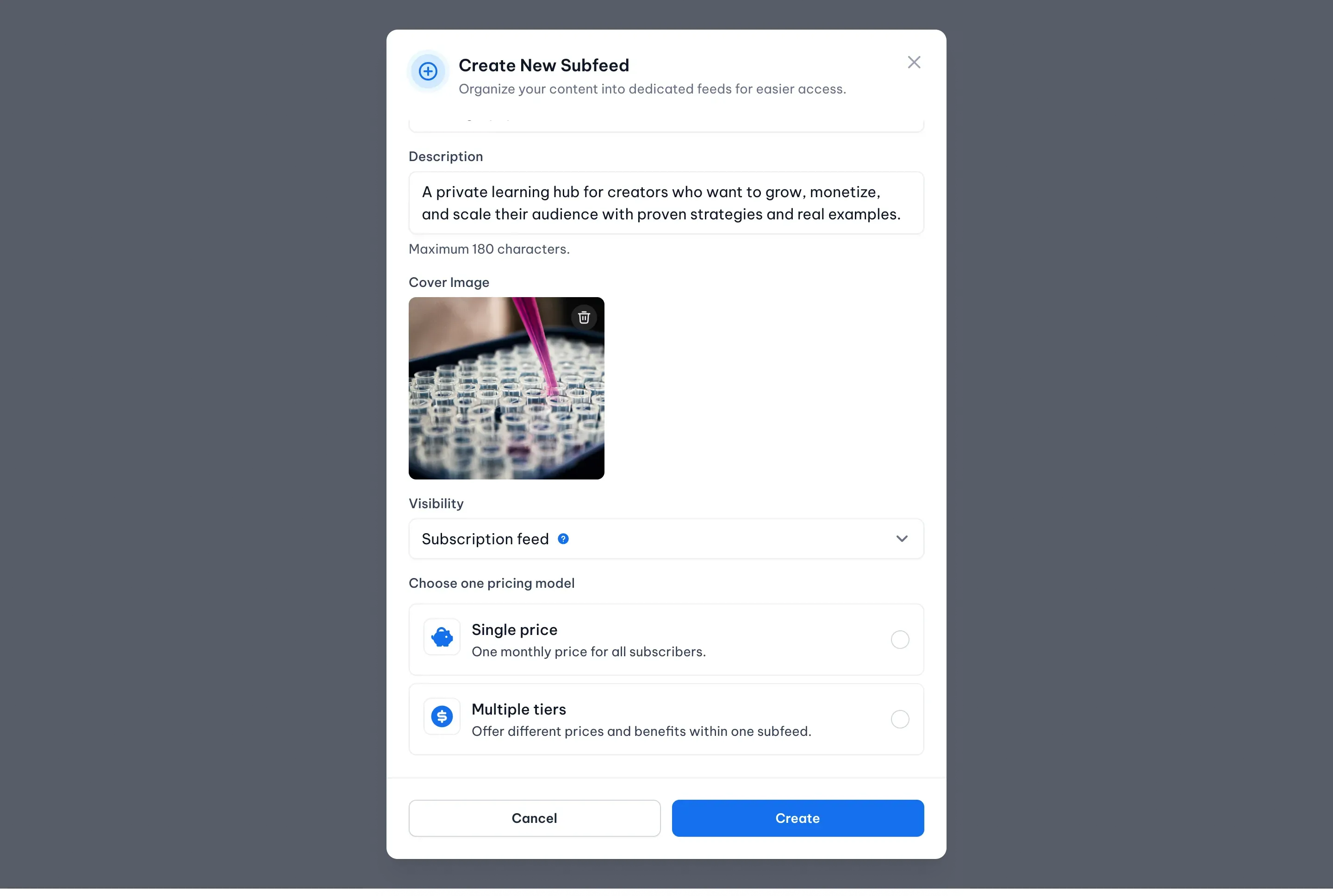
Step 2 - Choose Visibility Type
Choose how users will access the content in your Subfeed. NewRich offers two visibility options:
- Subscription Feed - Choose Subscription Feed to make your content available only to active subscribers.
- Users must have an active subscription to view all content published in this Subfeed.
- Pay-Per-Post Feed - Choose Pay-Per-Post Feed if you'd like users to browse your Subfeed for free while purchasing individual premium posts.
- Visitors can explore the feed before deciding which posts they'd like to unlock.
Step 3 - Choose a Pricing Model (Subscription Feeds Only)
If you select Subscription Feed, you must choose a pricing model.
- Single Price - All subscribers use the same subscription plan, including the same price and billing frequency. This is the simplest pricing structure.
- Multiple Tiers - Create multiple subscription levels within the same subfeed.
- Each tier can have:
- Different pricing
- Different benefits
- Different access levels
- Each tier can have:
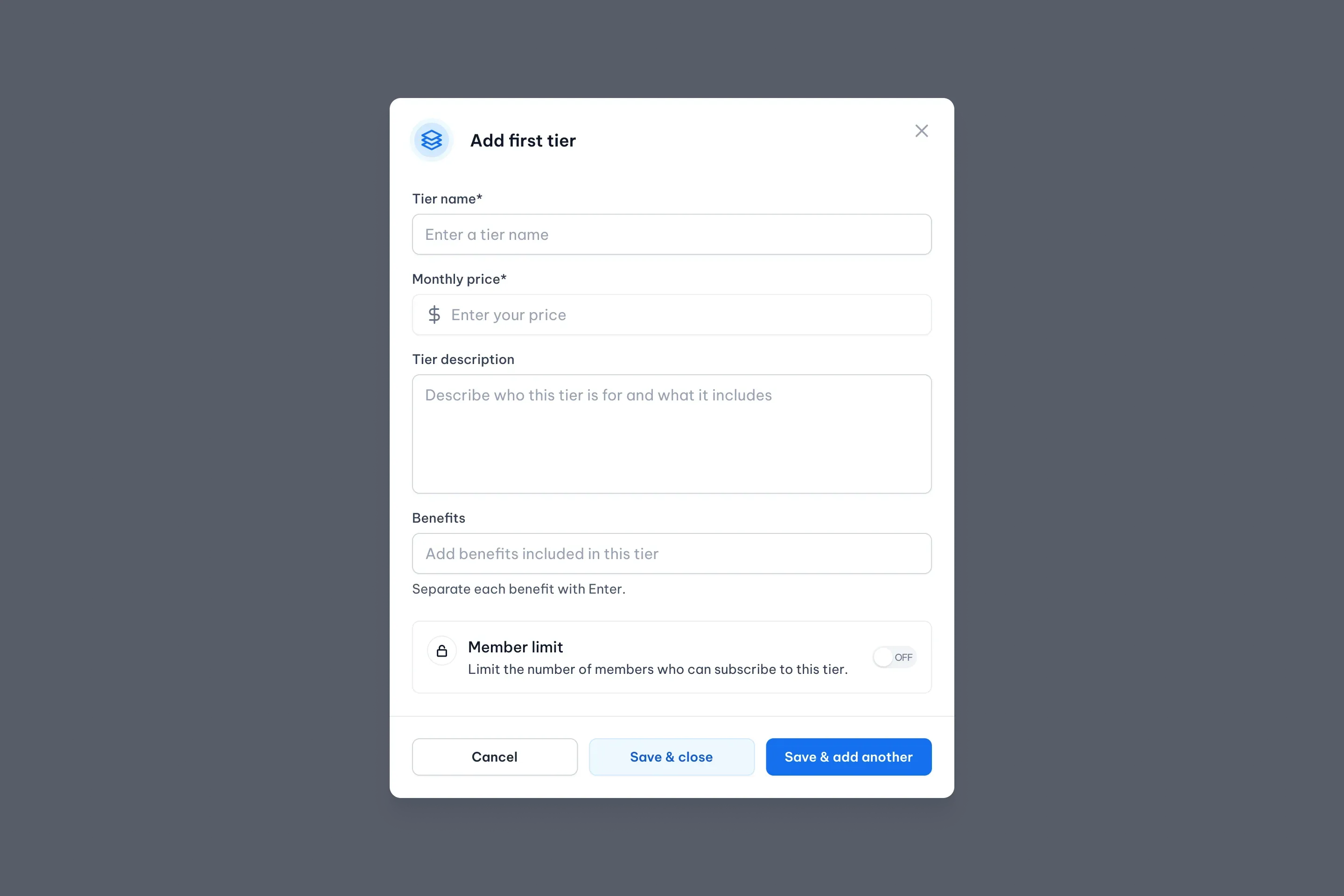
Step 4 - Configure Subscription Tiers (Multiple Tiers Only)
If you select Multiple Tiers, you must create at least one subscription tier.
For each tier, provide:
- Tier Name - The public name of the tier.
- Monthly Price - The recurring subscription price.
- Tier Description - A short explanation of what members receive.
- Benefits - List the benefits included with the tier.
- Member Limit (Optional) - Limit the number of members who can subscribe to the tier.
Highlight a Tier (Optional)
Creators can choose to highlight one subscription tier. Highlighted tiers receive additional visual emphasis on pricing screens.
Available options:
- Earning Potential - Automatically highlights the tier with the highest revenue potential.
- Your Choice - Manually select which tier should be highlighted.
- Most Popular - Automatically highlights the tier with the most active subscribers.
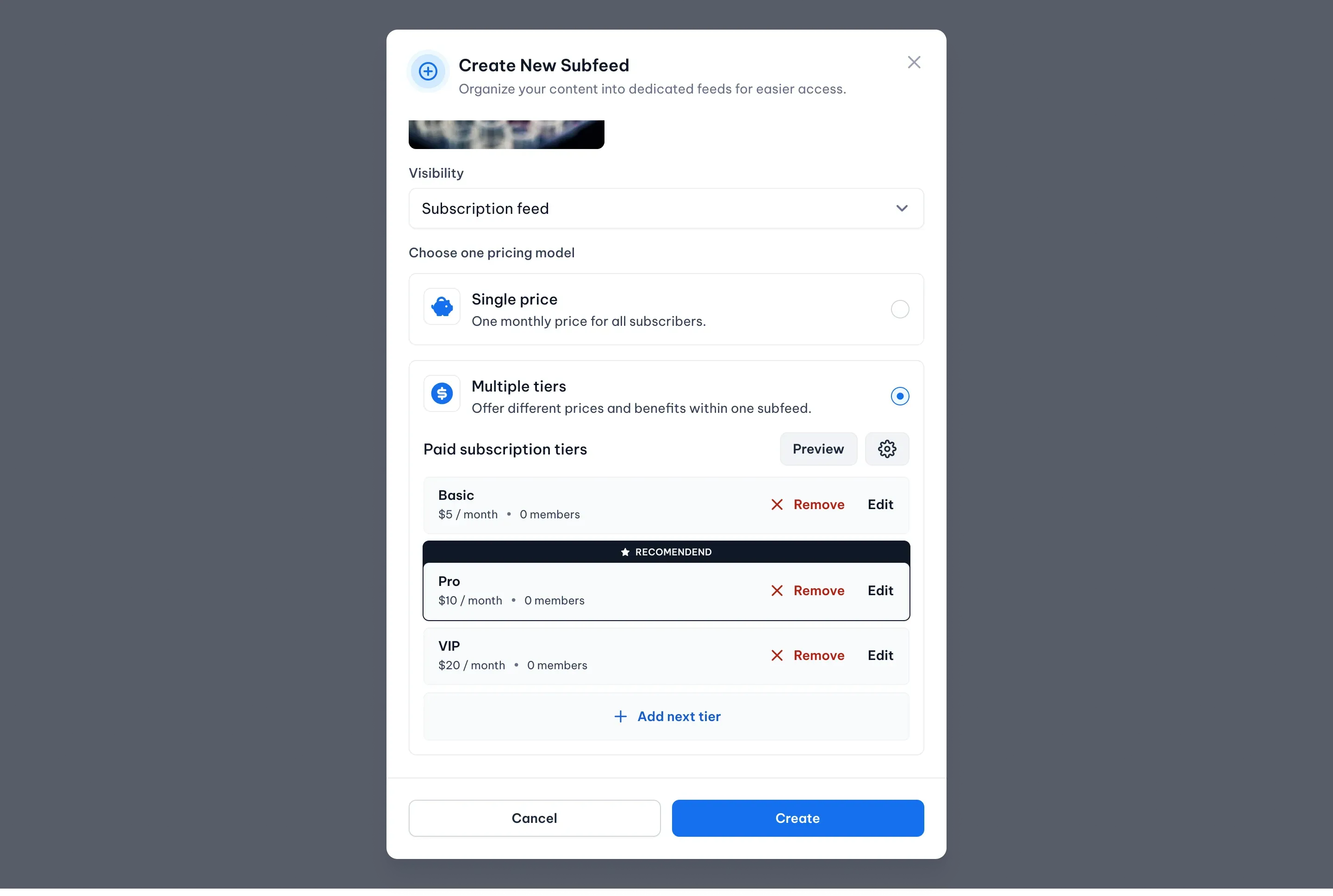
Preview Subscription Plans
Before publishing, creators can preview subscription plans exactly as users will see them.
The preview is read-only and allows creators to verify:
- Pricing
- Benefits
- Tier structure
- Highlighted tier
Completing Your Subfeed
Once you've configured your Subfeed settings, click Create to finish the setup.
Your new Subfeed will appear in the Subfeeds section on your profile and will be available immediately.
You can start publishing content by creating a new post and selecting your Subfeed during the publishing process.