
Block members
Block members
Blocking allows you to prevent unwanted interactions with another member. Once someone is blocked, communication between both accounts is restricted, making it easier to control who can contact you or interact with your content.
You can block members at any time and manage your blocked users from your account settings.
Blocking a Member
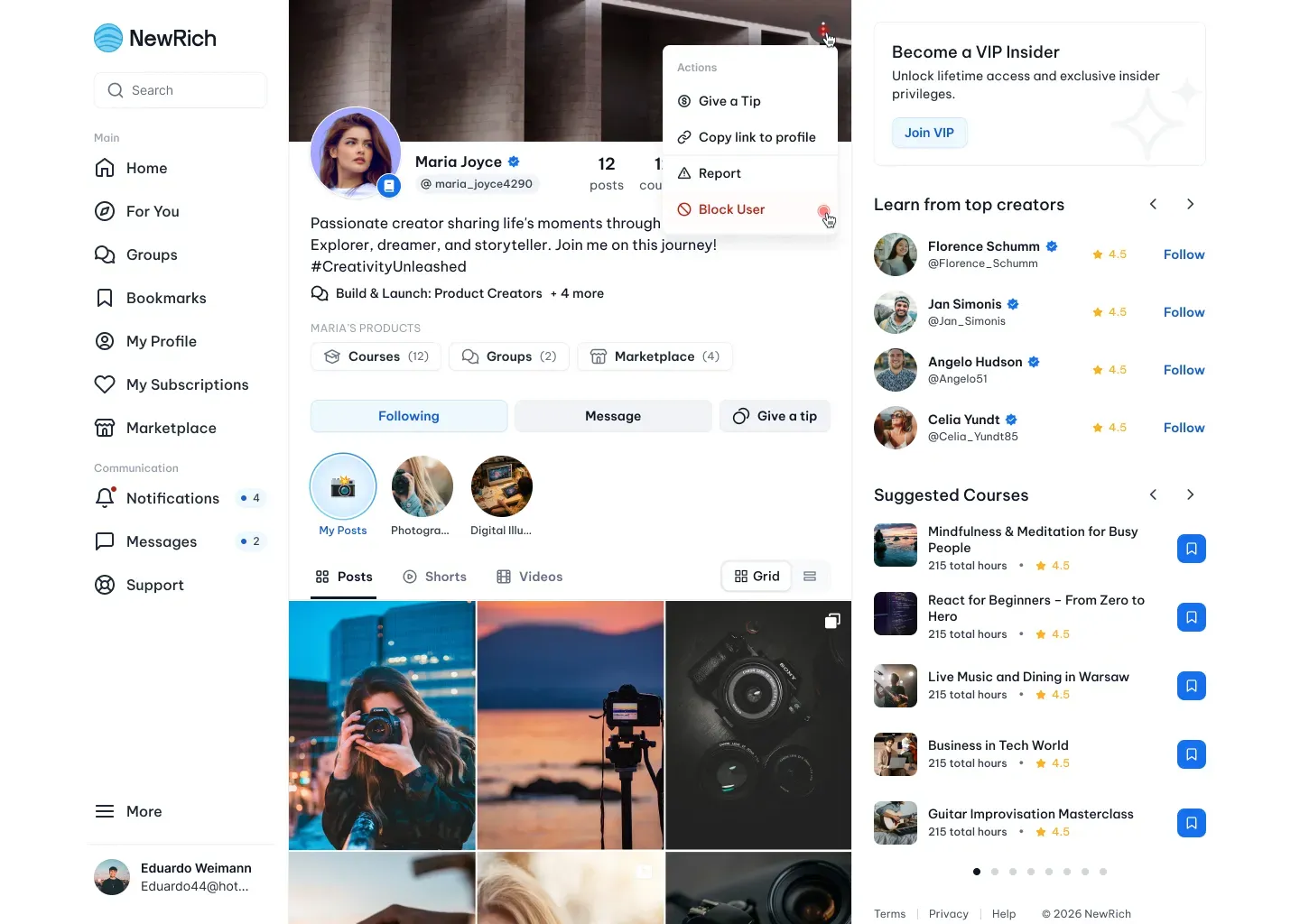
You can block another member from anywhere their profile or content is available.
Open the Actions menu on a creator profile, post, comment, or within a conversation, then select Block User. Before the action is completed, NewRich asks for confirmation to prevent accidental blocking.
Blocking takes effect immediately after confirmation.
What Happens After Blocking
When you block another member, communication between both accounts is disabled.
After blocking:
- The blocked member can no longer send you new messages.
- Existing conversations become read-only and messaging is disabled.
- Their posts, profile interactions, and content are no longer shown to you in places where blocking restrictions apply.
- The blocked member cannot directly interact with your account until they are unblocked.
Blocking only affects interactions between the two accounts and does not delete previous conversations or shared content.
Managing Blocked Members
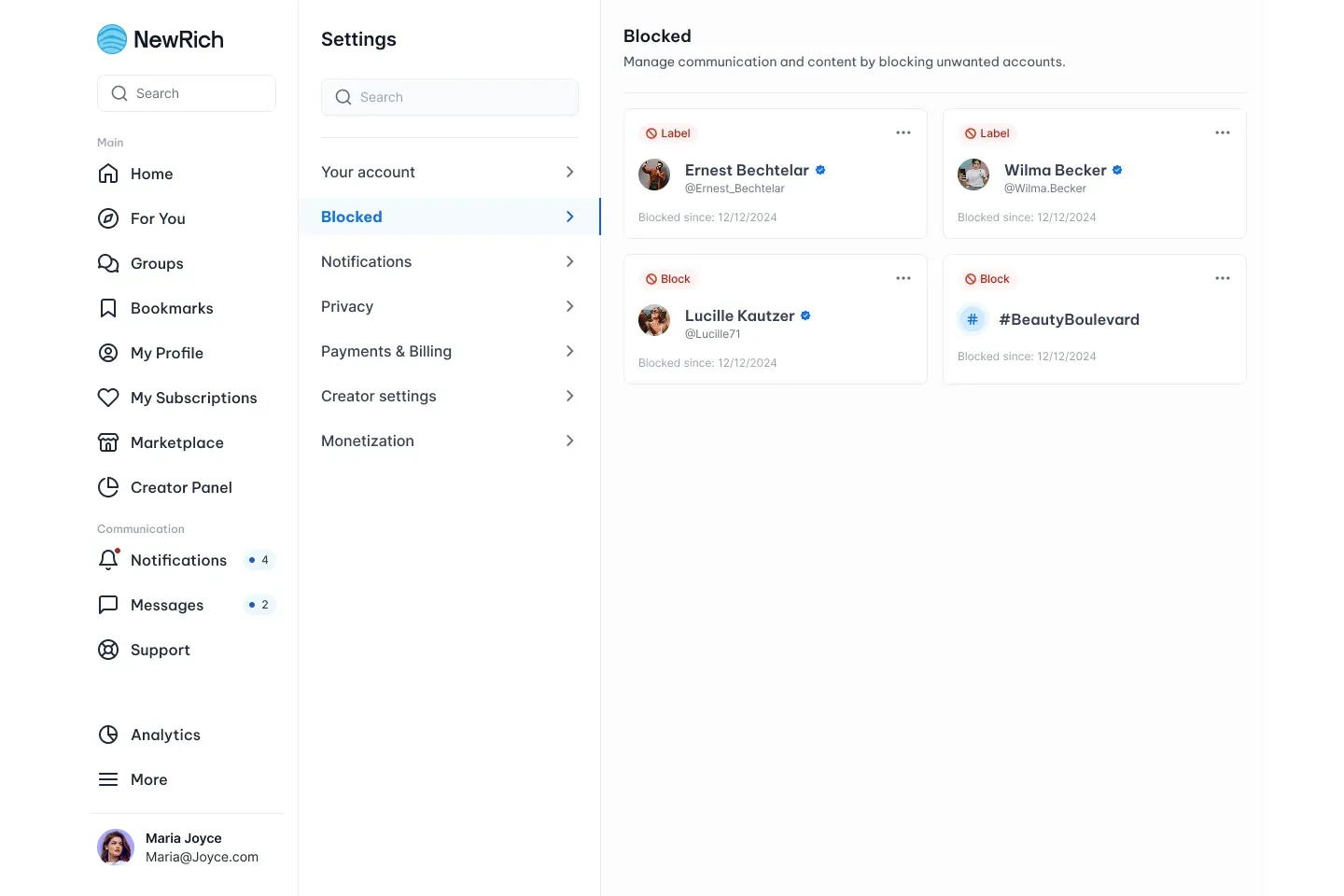
You can manage all blocked accounts from Settings → Blocked. This page displays every member you've blocked, allowing you to review your blocked list and restore communication whenever needed.
To unblock someone, simply find the member in the list and select Unblock. Once confirmed, messaging is re-enabled, both accounts can interact normally again, and each user's public profile and content become visible according to their privacy settings.
Unblocking does not automatically restart previous conversations, but it allows both members to communicate again normally.