

Support Center
Support Center
The Support Center is the easiest way to get help with your NewRich account, purchases, subscriptions, Marketplace products, or technical issues.
From one place, you can submit new support requests, communicate with the support team, and track the progress of all your existing tickets.
How Support Requests Are Routed
After submitting a ticket, NewRich automatically assigns it to the appropriate recipient based on the selected category.
If additional assistance is required, NewRich Support may coordinate directly with the creator to help resolve the issue.
View Your Support Requests
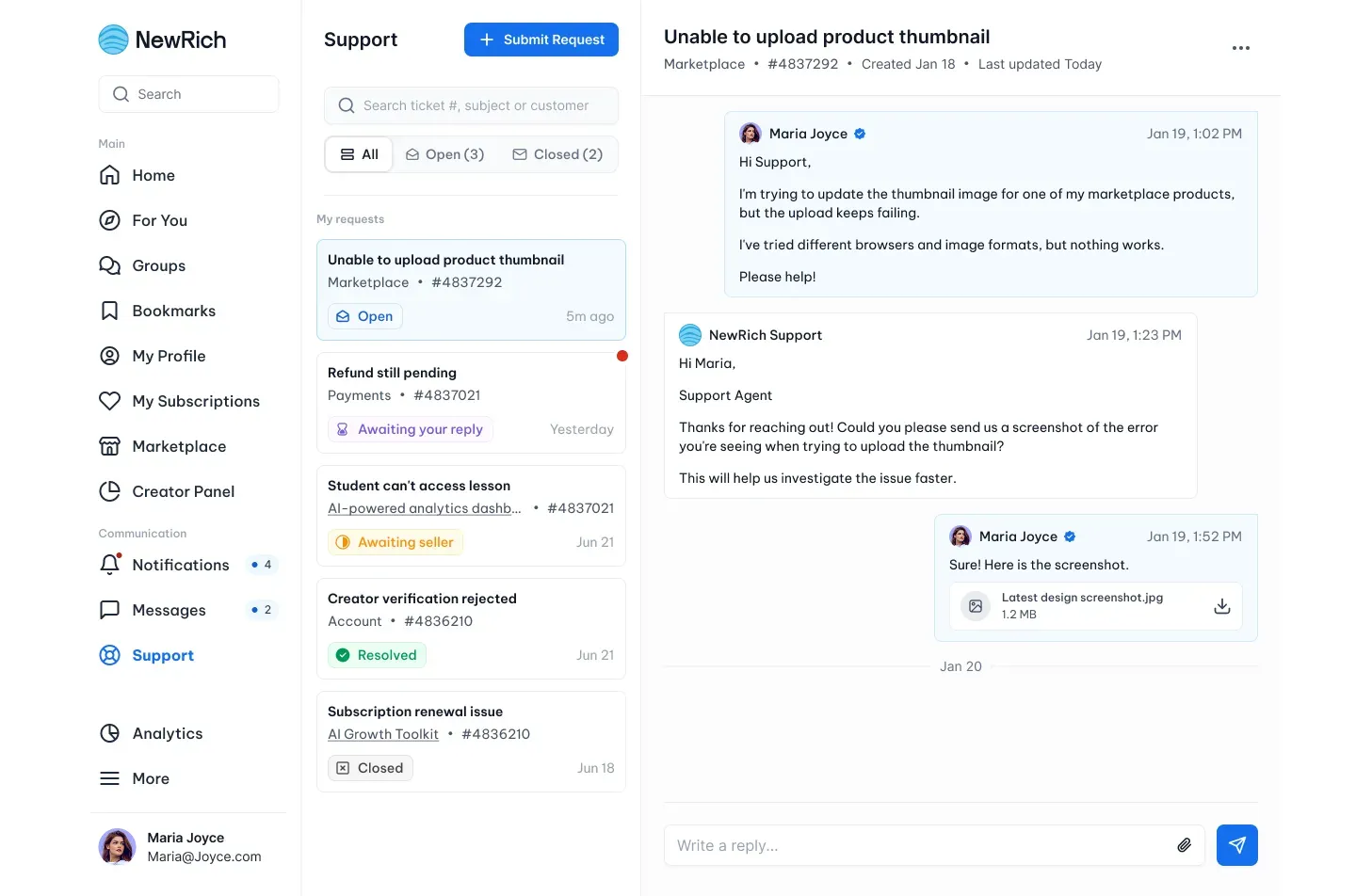
Open Support from the left navigation menu.
Here you'll find all of your support requests, including active, resolved, and closed tickets.
You can:
- Search tickets by ID, subject, or related item
- Filter tickets by status
- Open existing conversations
- Submit a new support request
Each ticket displays its current status and latest activity, making it easy to track progress.
Submit a Support Request
Click Submit Request to create a new ticket.
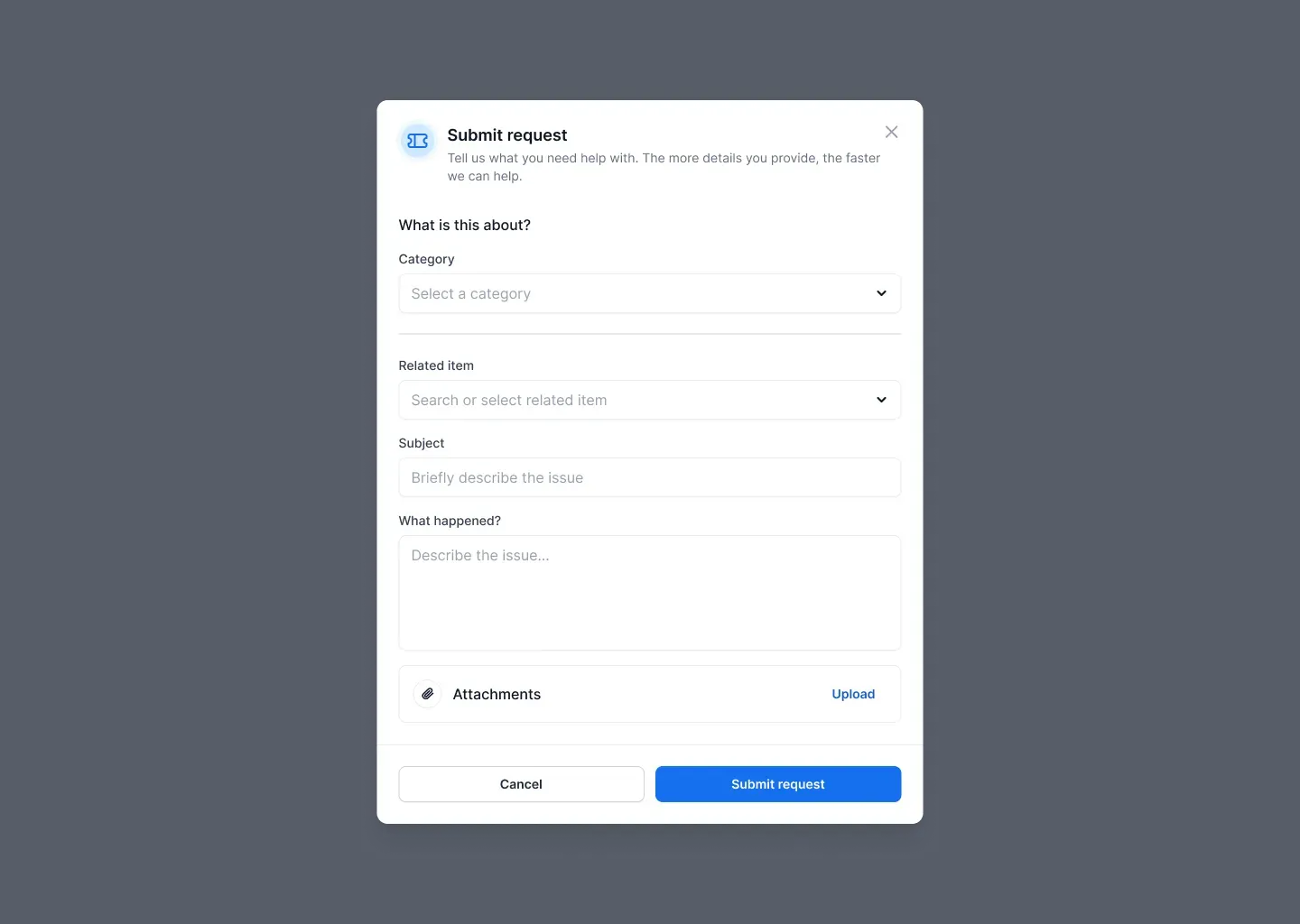
Step 1 — Choose a Category
Select the category that best matches your issue:
- Marketplace
- Payments
- Courses
- Subscriptions
- Account
- Verification
- Technical Issue
- Other
The form automatically updates based on the category you select.
Step 2 — Add Request Details
For purchase-related categories, select the affected product, course, subscription, or payment.
Then provide:
- A short subject
- A description of the issue
- Optional attachments, such as screenshots or documents
Including clear details helps the support team resolve your request more quickly.
Step 3 — Submit Your Request
Click Submit Request to create the ticket.
Your request will immediately appear in the Support Center, where you can follow updates and continue the conversation.
Manage Your Tickets
Open any ticket to view the conversation with the support team.
You can:
- Reply to messages
- Upload additional attachments
- View the complete conversation history
Ticket statuses update automatically as your request progresses.
Ticket Details
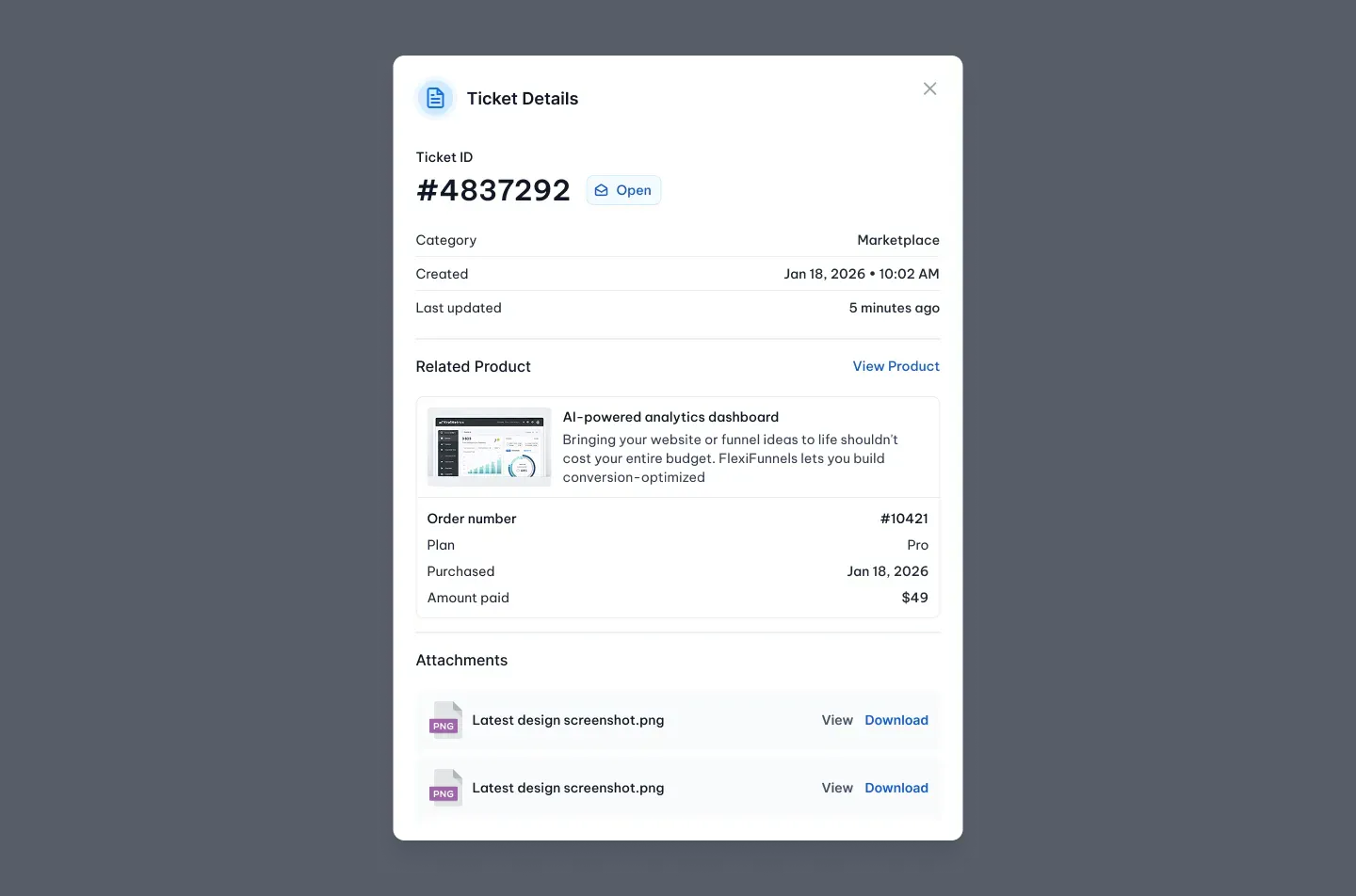
Select Ticket Details from the (•••) menu to view additional information about your request. The details panel includes:
- Ticket ID
- Status
- Category
- Creation and last updated dates
- Related purchase or product
- Uploaded attachments
Ticket Statuses
During the support process, your ticket may display one of the following statuses:
- Open – Your request has been received.
- Awaiting your reply – Support needs more information from you.
- Awaiting seller – The creator or seller must respond.
- Resolved – Your issue has been resolved.
- Closed – The request has been completed.